🍅 VitaBook User Guide 🍅
Welcome to VitaBook — your go-to desktop companion made just for freelance nutritionists in Singapore. Whether you're juggling patient records, planning meal guides, or sorting through dietary preferences, VitaBook’s got your back. It blends the speed of a Command Line Interface (CLI) with the simplicity of a Graphical User Interface (GUI), so you can breeze through admin work and get back to what you do best: helping people eat better and live healthier.
Table of Contents 📚
1. Introduction
2. Features
2.1 To Navigate Patient Care
- 2.1.1 Adding a Patient
- 2.1.2 Listing all Patients
- 2.1.3 Editing a Patient
- 2.1.4 Changing a Patient's Priority
- 2.1.5 Adding a Remark to a Patient
- 2.1.6 Locating Patients by Name
- 2.1.7 Filtering Patients
- 2.1.8 Sorting Patients
- 2.1.9 Deleting a Patient
- 2.1.10 Clearing all Patient Entries
2.2 To Provide a Convenient and Pleasant Experience
- 2.2.1 Viewing Help
- 2.2.2 Undoing the Last Change
- 2.2.3 Redoing the Last Undo
- 2.2.4 Navigating Through Command History
- 2.2.5 Toggling between Light Mode and Dark Mode
- 2.2.6 Exiting the Program
- 2.2.7 Saving the Data
2.3 Bonus for Advanced Nutritionists
3. FAQ
4. Known Limitations
5. Command Summary
6. Glossary
7. Java Setup Instructions
1. Introduction
1.1 How to use User Guide? 📘
This guide is here to help you make the most of VitaBook — whether you're a first-time user or a seasoned pro.
🆕 First time here? Start with the Quick Start and Key Features sections to get an overview of what VitaBook offers.
🔍 Need a specific command? Use the Command Summary or Table of Contents to quickly find what you need.
✨ Want to learn a feature in depth? Browse the Features section — each command is explained with examples.
🛠️ Facing issues or bugs? Check the FAQ and Known Issues sections for help and common solutions.
⚙️ Power user? Learn how to directly edit the data file in Edit the Data File Directly!
Feel free to jump around or read it cover to cover — whatever suits your workflow.
Let VitaBook do the admin work, so you can focus on what matters most. 🧠🍎
1.2 How to use VitaBook? 🧭
VitaBook is built just for you, nutritionists — with commands tailored to your daily workflow. From adding and editing patient records to sorting, filtering, and setting priorities, everything is designed to help you stay organised, focused, and in control of your care delivery.
Key Features ⭐
- Add Patient —
add: Quickly create a new patient entry with all their key info. - Edit Patient —
edit: Update patient details as their care evolves. - Priority —
priority: Reprioritise patients based on urgency or attention needed. - Filter —
filter: Narrow down your list by priority, diet, gender, or meeting date. - Sort —
sort: Instantly organise patients by what matters most — priority, name, diet, or meeting date.
↓ Go to Command Summary for Quick Reference!
1.3 Quick start 🚀
Let us guide you through your start with VitaBook:
Ensure you have Java
17or above installed in your computer.
Mac users: Ensure you have the precise JDK version prescribed here.
Check/Install Java: See Java Setup Instructions at the bottom of this guide.Download the latest
.jarfile here!Copy the file to the folder you want to use as the home folder for your own VitaBook.
Open a command terminal and use the
cdcommand to navigate to the folder containing the.jarfile.Type the command
java -jar vitabook.jarto run the application. A GUI similar to the one below should appear in a few seconds. Note that the app contains some sample data.
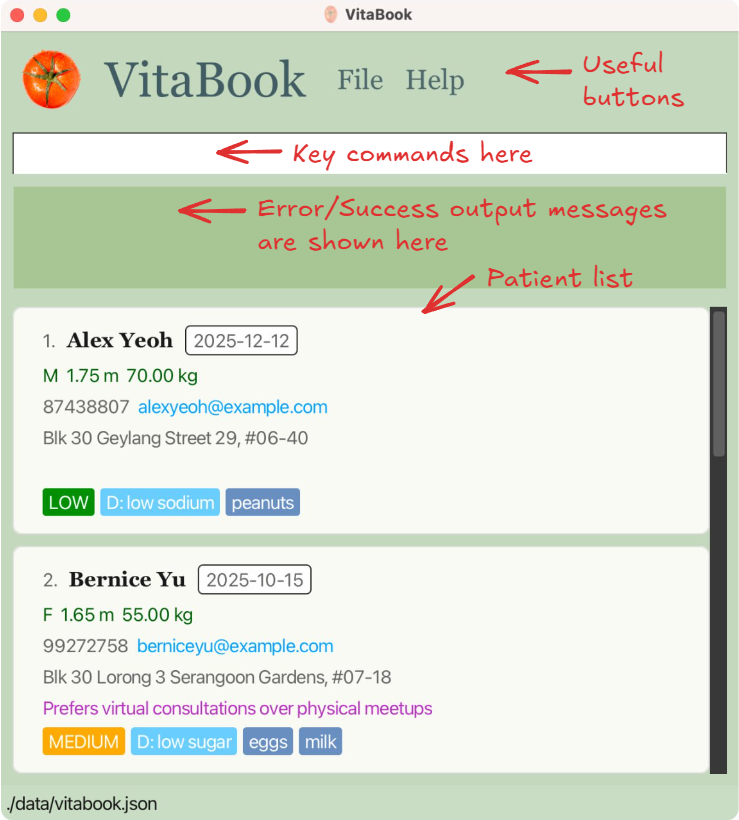
Figure 1: The VitaBook UI, showing layout and sample data
- Try typing the command in the command box and press Enter to execute it.
e.g. typinghelpand pressing Enter will open the help window. Let's try some out!:
list: Lists all patients.add n/John Doe g/m h/1.78 w/70.00 no/98765432 e/johnd@example.com a/John Street, block 123, #01-01 d/low sodium m/2025-01-25 pr/LOW: Adds a new patient namedJohn Doeto your VitaBook.delete 3: Deletes the 3rd patient in the current list.clear: Deletes all patients.exit: Exits the app.
- Were these commands fun to play with? Feel free to explore further the functionalities of VitaBook by following Features!
1.4 Instructions about Commands 🧾
These are a few things to take note while exploring VitaBook!
Command keywords are case-sensitive.
e.g.delete 1is a known command, whileDelete 1is an unknown command.Words that are in
UPPER_CASEare the parameters to be supplied by the nutritionist, you!
e.g. inadd n/NAME,NAMEis a parameter which you can fill in asadd n/John Doe.Items in square brackets are optional.
e.gn/NAME [al/ALLERGY]mean you can either have allergy or not such asn/John Doe al/fishor asn/John Doe. After all, not everybody has allergies, do they?Items with
… after them can be used multiple times including zero times.
e.g.[al/ALLERGY]…can be used as(i.e. 0 times),al/milk,al/milk al/peanutetc. This makes your entry of each patient more comprehensive!Parameters for
addandeditcommands can be in any order.
e.g. if the command specifiesn/NAME no/PHONE,no/PHONE n/NAMEis also acceptable, making the system flexible.Extraneous parameters for commands that do not take in parameters (i.e.
help,list,exit,undo,redoandclear) will be ignored.
e.g. if the command specifieshelp 123, it will be interpreted ashelpso as to make your experience convenient!If you are using a PDF version of this document, be careful when copying and pasting commands that span multiple lines as space characters surrounding line-breaks may be omitted when copied over to the application.
↑ Back to Top
↑ Back to Table of Contents
2. Features
2.1 To Help You Navigate Patient Care
2.1.1 Adding a Patient: add ➕
Adds a new patient to your VitaBook with their specified/required fields.
Format: add n/NAME g/GENDER h/HEIGHT w/WEIGHT no/PHONE e/EMAIL a/ADDRESS d/DIET pr/PRIORITY m/MEETING_DATE [al/ALLERGY]…
Figure 2: Example of person card, containing different fields
To note:
A patient can have any number of allergies (including 0).
Emails must be unique i.e. duplicate emails are not allowed.
Patient names can be duplicated i.e. duplicate names are allowed.
Gender must be
morf(case-insensitive).Height must be between
0.50and3.00.Weight (in kilograms) must be a positive number with exactly 2 decimal places, strictly greater than 0.00 and less than or equal to 1000.00.
Priority must be one of the following:
high,medium,low(case-insensitive).Diet must be one of the following:
regular,low sodium,low fat,low carb,low sugar(case-insensitive).- Only one diet can be assigned per person for simplicity. Additional specialisations can be added in remarks.
Meeting date must be in the format
YYYY-MM-DD.Phone number must be a positive integer of exactly 8 digits and starts with 6, 8 or 9.
Email address has the following standards:
- The local part (before @) can include letters, numbers, and limited special characters (+, _, ., -), but must not start or end with a special character, and cannot have consecutive periods (..).
- The domain (after @) must consist of domain labels separated by periods, where each label starts and ends with a letter or number, and hyphens are allowed inside labels.
- The top-level domain (TLD) must be one of the following recognized domains: .com, .org, .net, .edu, .gov, .io, .co, .sg, .my, .info, .biz, .us, .uk, or .ca.
If you need to enter a / inside a patient's name or other fields (e.g., Charlie A/P), make sure that any part before or after the / is capitalised (e.g., A/P) to avoid confusion with command field prefixes like a/ for address.
e.g. Charlie A/P instead of Charlie a/p (might be treated as address input)
Examples:
add n/John Doe g/m h/1.78 w/70.00 no/98765432 e/johnd@example.com a/John Street block 123, #01-01 d/low sodium pr/LOW m/2025-01-25adds a new patient John Doe.add n/Betsy Crowe e/betsycrowe@example.com g/f a/Newgate Prison h/1.68 w/50.00 no/97867564 d/low fat pr/MEDIUM m/2025-02-24 al/peanuts al/milkadds a new patient Betsy Crowe.
2.1.2 Listing all Patients: list 📋
Shows a list of all the patients in your VitaBook.
If you have previously used filter or find to narrow down the patient list, use the list command to reset the display and show all patients again.
Format: list
2.1.3 Editing a Patient: edit ✏️
Edits the specified fields of an existing patient in your VitaBook.
Format: edit INDEX [n/NAME] [g/GENDER] [h/HEIGHT] [w/WEIGHT] [no/PHONE] [e/EMAIL] [a/ADDRESS] [d/DIET] [pr/PRIORITY] [m/MEETING_DATE] [al/ALLERGY]…
To note:
The index refers to the index number shown in the displayed patient list. The index must be a positive integer.
At least one field to edit must be provided.
Existing values will be updated to the input values.
You can remove all the patient’s allergies by typing
al/without specifying any allergies after it.The fields used in the
editcommand follow the same constraints as specified in theaddcommand.
Examples:
edit 1 no/91234567 e/johndoe@example.comedits the phone number and email address of the 1st patient (in the list) to be91234567andjohndoe@example.comrespectively.edit 2 n/Betsy Crower al/edits the name of the 2nd patient (in the list) to beBetsy Crowerand clears all existing allergies.
Warning:
When editing allergies, the existing allergies will be replaced by the new ones you provide. To ensure that the old allergies are not deleted, make sure to include them in the edit command.
2.1.4 Changing a Patient's Priority: priority 🔺
Changes a patient's priority by their index.
Format: priority INDEX pr/PRIORITY or pr INDEX pr/PRIORITY
To note:
The index refers to the index number shown in the displayed patient list. The index must be a positive integer.
Priority must be one of the following:
high,medium,low(case-insensitive) and cannot be blank.
Example:
priority 1 pr/HIGHchanges the priority of the 1st patient in the patient list toHIGH.
2.1.5 Adding a Remark to a Patient: remark 💬
Adds a new remark or replaces an existing remark of a patient.
Format: remark INDEX r/[REMARK]
To note:
You can use this command to add any conditions or custom information.
The index refers to the index number shown in the displayed patient list. The index must be a positive integer.
You can remove a patient's remark by typing
r/without specifying any remarks after it.You can add or edit exactly one remark for each patient.
e.g.remark 1 r/needs visual guides r/very motivatedwill result in an error message being thrown.
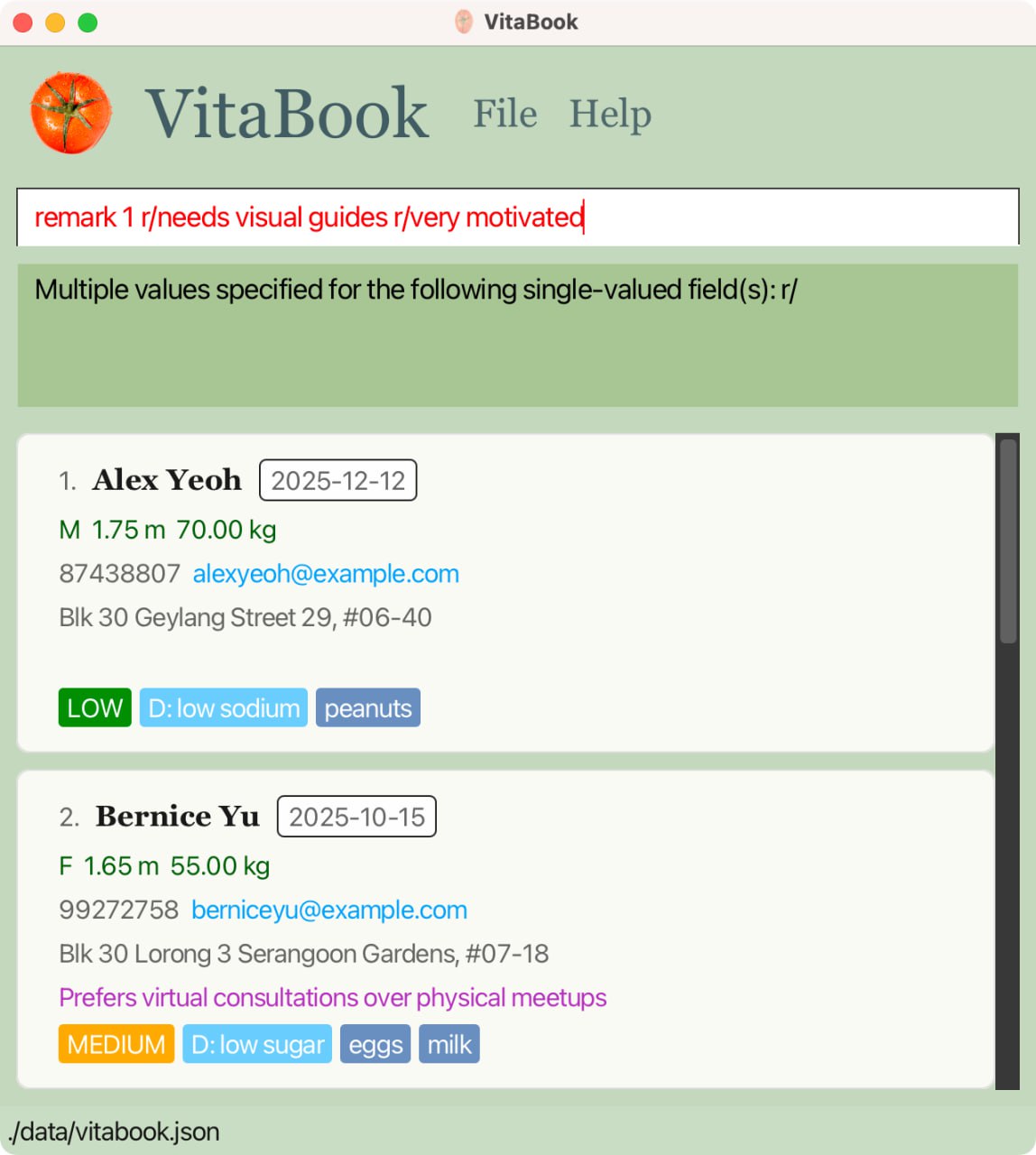
Figure 3: Result when adding multiple remarks to a patient using remark 1 r/needs visual guides r/very motivated
Examples:
listfollowed byremark 2 r/Enjoyed last week's meal plan, keep similar itemsadds a remark to the 2nd patient in the patient list.find Betsyfollowed byremark 1 r/Tends to skip meals when stressedadds a remark to the 1st patient in the results list of thefindcommand.remark 3 r/removes existing remark to the 3rd patient in the list.
Warning: Remark command currently only supports adding a new remark or replacing an existing one. Thus, currently at most one remark can be displayed for each patient. Older remarks will be overwritten if you wish to add a new remark.
2.1.6 Locating Patients by Name: find 🔍
Finds patients whose names contain any of the given keywords.
Format: find KEYWORD [MORE_KEYWORDS]
To note:
The search is case-insensitive.
e.ghanswill matchHansThe order of the keywords does not matter.
e.g.Hans Bowill matchBo HansOnly parts of the name is searched.
Partial words can be matched.
e.g.Hanwill matchHansPatients whose name matches any of the given keywords will be returned (i.e.
ORsearch).
e.g.Hans Bowill returnHans Gruber,Bo Yang
Examples:
find johnreturnsjohnandJohn Doefind alex davidreturnsAlex Yeoh,David Li
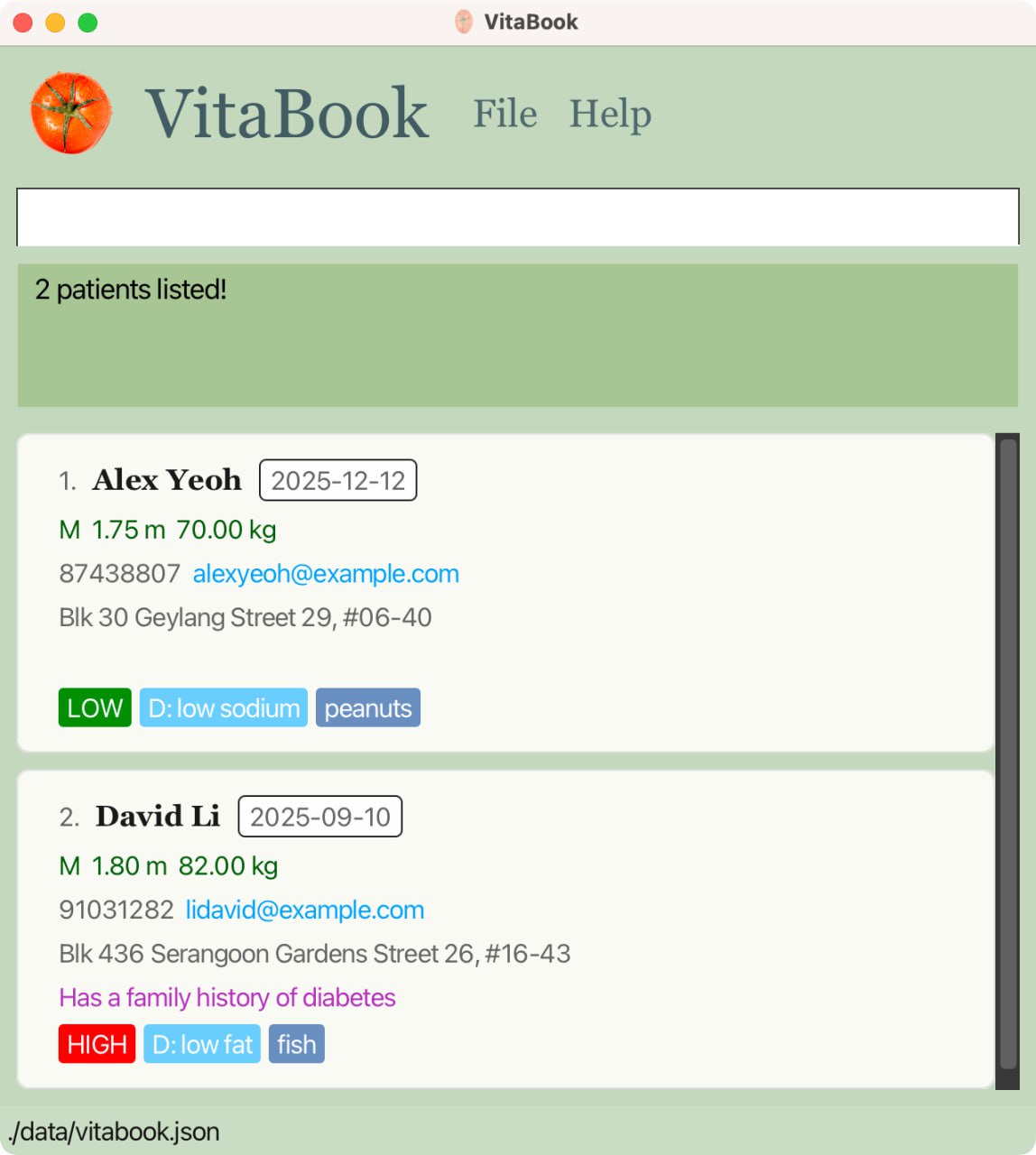
Figure 4: Results for find alex david
2.1.7 Filtering Patients: filter 🧃
Filter patients based on a field (priority, diet, gender, meeting date).
Format: filter pr/PRIORITY or filter d/DIET or filter g/GENDER or filter m/MEETING_DATE
To note:
Only one field to filter to be provided at one time.
The fields used in the
filtercommand follows the same constraints as specified in theaddcommand.Using commands like add, edit and remark after
filterwould return to main list in the full form.Using commands like delete and priority after
filterwould retain the list in the filtered form, unless the new priority value contradicts the filtered priority value.
Examples:
filter pr/HIGHreturns all patients with high priority.filter d/low sugarreturns all patients with low sugar diet.filter g/freturns all female patients.filter m/2025-12-12returns all patients with meeting date on2025-12-12.
Warning:
Filter command currently doesn't support multiple fields filtering. filter pr/high g/f will not work and will give error message.
2.1.8 Sorting Patients: sort 📊
Sorts patients based on specific criteria (priority, name, diet and meeting date).
Format: sort CRITERIA
To note:
- Criteria must be one of the following:
priority,name,diet,meetingdate(case-insensitive) and cannot be blank.
Examples:
sort priorityreturns the patient list sorted from the highest priority to the lowest priority.sort namereturns the patient list sorted in lexicographical (alphabetical) order by name in ascending order.sort dietreturns the patient list sorted in lexicographical (alphabetical) order by diet in ascending order.sort meetingdatereturns the patient list sorted in chronological order by date from earliest to latest.
2.1.9 Deleting a Patient: delete ❌
Deletes a patient from your VitaBook.
Format: delete INDEX or delete EMAIL
To note:
You can choose to delete the patient at the specified
INDEX.Alternatively, you can also delete the patient with a specified
EMAIL.The index refers to the index number shown in the displayed patient list. The index must be a positive integer.
Examples:
listfollowed bydelete 2deletes the 2nd patient in the patient list.find betsyfollowed bydelete 1deletes the 1st patient in the results list of thefindcommand.delete johnd@example.comdeletes the patient with email addressjohnd@example.com.
2.1.10 Clearing all Patient Entries: clear 🧹
Clears all patient entries from your VitaBook.
Format: clear
2.2 To Provide a Convenient and Pleasant Experience
2.2.1 Viewing Help: help 🆘
Opens a window with a link to this user guide.
Format: help
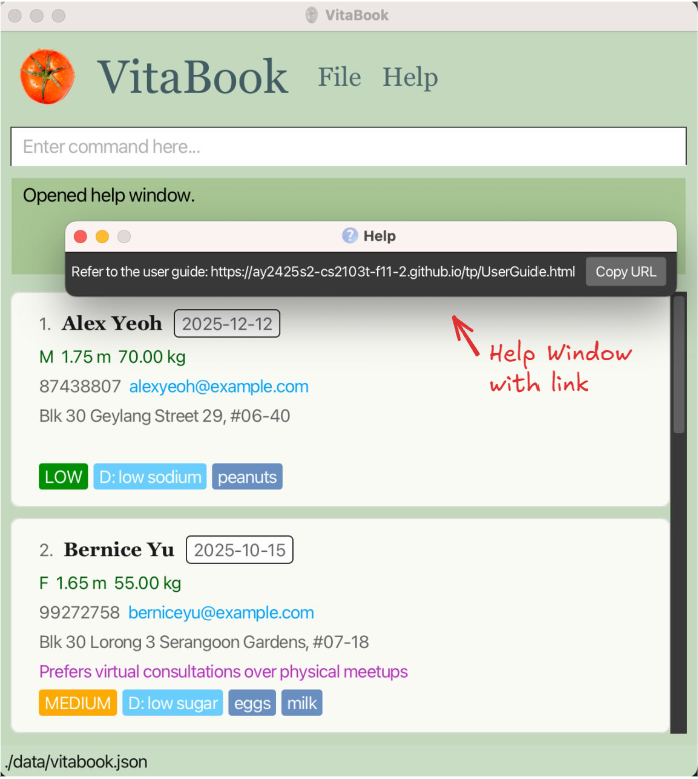
Figure 5: Window displaying the user guide link
2.2.2 Undoing the Last Change: undo ↩️
Undoes the last command that changed the patient list.
Format: undo
To note:
You can only execute undo commands after using commands that may modify data in the patient list (i.e.
add,edit,delete,remark,clear,priority,redo).Support multiple undo commands until the patient list reaches the initial state.
Even if the patient list data is exactly the same, if you executed the commands stated in point 1 successfully, you can still execute an undo command.
2.2.3 Redoing the Last Undo: redo ↪️
Redoes the last undo.
Format: redo
To note:
You can only execute redo commands after using an undo command.
Support multiple redo commands until the patient list reaches the final state.
Even if the patient list data is exactly the same, if you executed any undo commands successfully, you can still execute a redo command.
Warning:
Executing a new command that changes the patient list (excluding undo) after undo commands will purge the redo history. This means you cannot redo those undo commands anymore.
2.2.4 Navigating through Command History: ↑ and ↓ ⌨️
Navigates through the command history for quick access to previously executed commands.
Format: ↑ or ↓ arrow keys
2.2.5 Toggling between Light Mode and Dark Mode 🌗
Transitions between light mode and dark mode for a more customisable and improved visual experience. Click the File menu to toggle between light mode and dark mode.
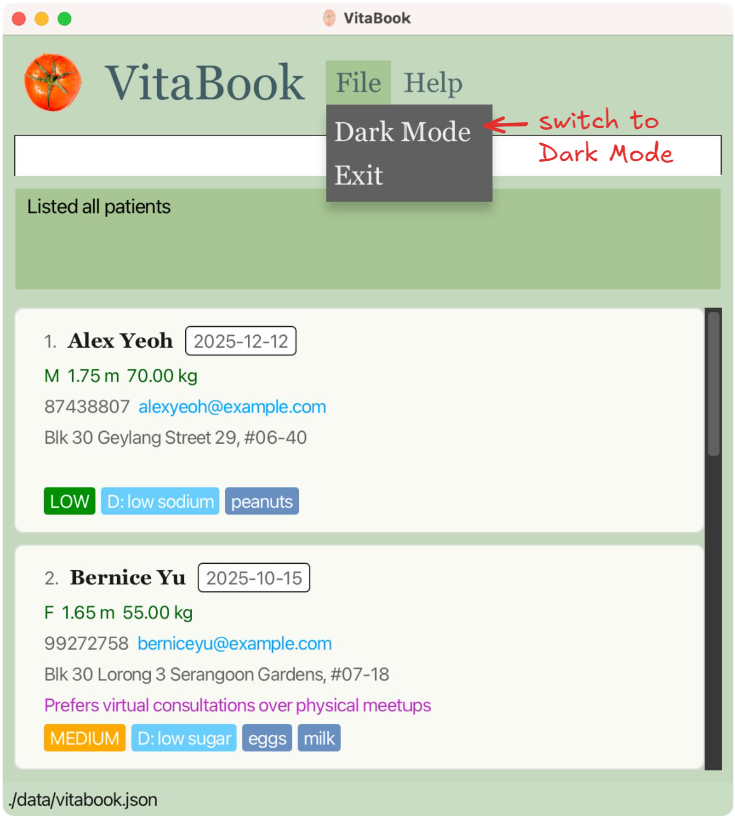
Figure 6: Change from light mode to dark mode
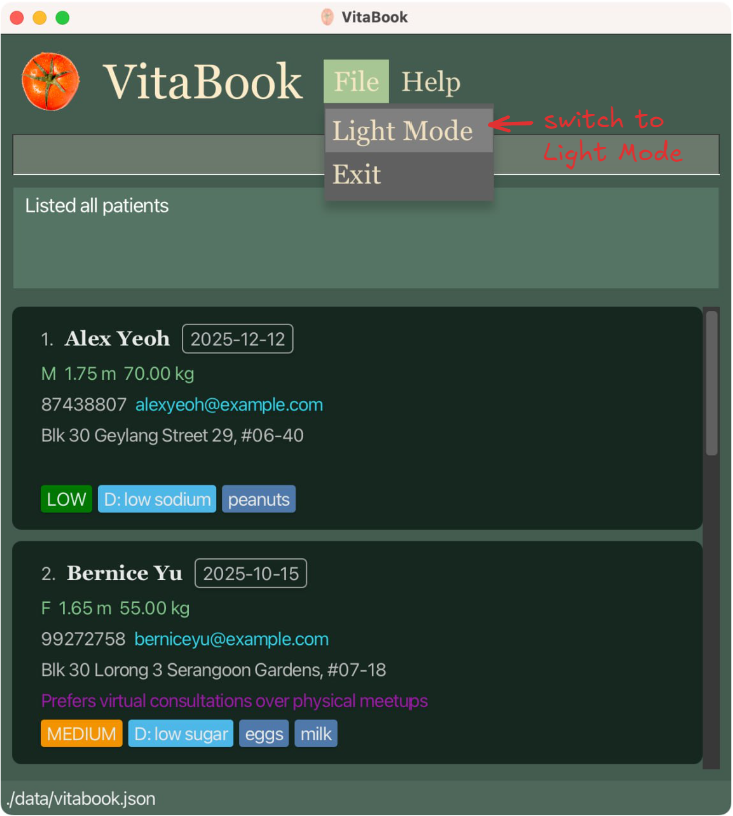
Figure 7: Change from dark mode to light mode
2.2.6 Exiting the Program: exit 🚪
Exits the program.
Format: exit
2.2.7 Saving the Data 💾
Your VitaBook data is saved in the hard disk automatically after any command that modifies the data. There is no need to save manually.
2.3 Bonus for Advanced Nutritionists
2.3.1 Editing the Data File Directly! 🧑💻
Your VitaBook data is saved automatically as a JSON file [JAR file location]/data/vitabook.json. Advanced users are welcome to update data directly by editing that data file.
Warning:
If your changes to the data file makes its format invalid, VitaBook will discard all data and start with an empty data file at the next run. Hence, it is recommended to take a backup of the file before editing it.
Furthermore, certain edits can cause the VitaBook to behave in unexpected ways (e.g., if a value entered is outside the acceptable range). Therefore, edit the data file only if you are confident that you can update it correctly.
↑ Back to Top
↑ Back to Table of Contents
3. FAQ ❓
❓ Q: What is VitaBook?
💬 A: VitaBook is your digital notebook — a desktop app built for freelance nutritionists like you. It helps you manage patient info like diets, appointments, and notes quickly and easily, all through fast, simple typing. No WiFi? No problem — it works offline too!
❓ Q: Who is VitaBook for?
💬 A: If you're a freelance or home-based nutritionist who wants to stay organised without juggling papers or complicated software, VitaBook is for you. It's lightweight, fast, and tailored to your day-to-day workflow.
❓ Q: How is VitaBook different from a regular address book?
💬 A: While an address book gives you names and numbers, VitaBook gives you real patient management. You can track diets, allergies, meeting dates, notes, urgency (priority), and more — all in one place.
❓ Q: Do I need to install anything special to use VitaBook?
💬 A: Just Java 17 — nothing fancy! Once you have that, you can launch VitaBook with a simple command and start managing your patients right away.
❓ Q: What kind of info can I store about a patient?
💬 A: Everything you need: name, phone number, email, address, gender, height, weight, diet, allergies, meeting date, priority level, and remarks. It’s like a one-stop record for every patient.
❓ Q: What happens if I delete a patient by accident?
💬 A: No worries — just use the undo command to bring them back. VitaBook remembers your recent changes so you don’t have to stress.
❓ Q: Can I undo other actions too?
💬 A: You can only undo actions that may modify data in the patient list (i.e. add, edit, delete, remark, clear, priority, redo).
❓ Q: Can I add custom info for patients?
💬 A: While you can't add new fields, the remark field is super flexible — use it to write anything extra you want to remember, like “prefers gluten-free snacks” or “has follow-up next month.”
↑ Back to Top
↑ Back to Table of Contents
4. Known Limitations 🐞
Allergy fields are case-sensitive. Adding allergies like
peanutsandPeanutsresults in two different allergies being stored.Allergy Validation is only alphanumeric. User can enter any combination of letters and numbers, even if they don't represent actual allergies. This is because maintaining a complete list of all possible allergies is not feasible.
No support for recurring meeting dates or reminders. Only a single meeting date can be stored per patient, with no repeat scheduling or notification support.
Commands must follow strict prefixes. Forgetting a prefix (like
n/for the name field) will result in an invalid command, even if the content is correct.No concurrency or multi-user support. VitaBook is designed as a single-user desktop application. Running two instances may cause file conflicts or data loss.
No graphical support for charts or health analytics. Patient data is presented in text format only. Features like BMI calculation, graphs, or dashboards are not supported.
Application crashes if
vitabook.jsonis manually corrupted. If the user edits or corrupts the storage file manually, VitaBook may fail to start or load a blank state. To solve this issue, try deletingvitabook.jsonand rerunning the application. Remember to backup the file before deleting.
↑ Back to Top
↑ Back to Table of Contents
5. Command Summary 🗂️
| Action | Format, Examples |
|---|---|
| Help | help |
| Add | add n/NAME g/GENDER h/HEIGHT w/WEIGHT no/PHONE e/EMAIL a/ADDRESS d/DIET pr/PRIORITY m/MEETING_DATE [al/ALLERGY]…e.g., add n/Alex Yeoh g/M h/1.75 w/70.00 no/87438807 e/alex@example.com a/Blk 30 d/low sodium pr/LOW m/2025-12-12 al/peanuts |
| List | list |
| Edit | edit INDEX [n/NAME] [g/GENDER] [h/HEIGHT] [w/WEIGHT] [no/PHONE] [e/EMAIL] [a/ADDRESS] [d/DIET] [pr/PRIORITY] [m/MEETING_DATE] [al/ALLERGY]…e.g., edit 1 d/low sugar w/68.00 pr/MEDIUM |
| Priority | priority INDEX pr/PRIORITY or pr INDEX pr/PRIORITY e.g., priority 2 pr/HIGH |
| Remark | remark INDEX r/[REMARK]e.g., remark 1 r/Likes protein-rich foods |
| Find | find KEYWORD [MORE_KEYWORDS]e.g., find alex bernice |
| Filter | filter pr/PRIORITY or filter d/DIET or filter g/GENDER or filter m/MEETING_DATE e.g., filter d/low sodium |
| Sort | sort CRITERIA e.g., sort priority |
| Delete | delete INDEX or delete EMAILe.g., delete 3 or delete johnd@gmail.com |
| Clear | clear |
| Undo | undo |
| Redo | redo |
| Navigate Command History | ↑ or ↓ arrow keys |
| Exit | exit |
↑ Back to Top
↑ Back to Table of Contents
6. Glossary 🧾
Software Terms
Java 17 The 17th version of the Java programming language and runtime environment. Java 17 provides the libraries and tools necessary to run Java applications—such as VitaBook.
JDK (Java Development Kit) A complete software development package that includes the Java runtime, compilers, and various tools to develop and run Java applications. Vitabook requires JDK 17 or later. Make sure you install the correct version to ensure compatibility.
Terminal / Command Line Interface (CLI)
A text-based interface used to interact with your computer’s operating system. In the terminal, you can navigate between folders and execute commands. To run Vitabook, open your terminal (or Command Prompt/PowerShell on Windows), use the cd command to navigate to the folder containing the vitabook.jar file, and then type:
java -jar vitabook.jar
Patient Information Terms 🩺
Priority
Your way of deciding how urgent a patient's needs are. Higher priority = more attention needed.
Diet
The nutrition plan you've prescribed for a patient — like “low sodium”, “low fat”, "low carb" or “low sugar”.
Allergy
Any food or substance the patient should avoid — this helps you keep their plan safe and accurate.
Remark
A free space to jot down helpful notes — appointment preferences, progress, reminders, anything you’d write in a physical notebook.
Meeting Date
The patient’s upcoming appointment (or last one, if you're keeping records).
Great for staying on top of your schedule.
Gender / Height / Weight
Basic health data to help you understand and track your patient’s profile.
Index
The number next to each patient when you view the list — you’ll use it when editing, prioritising, or deleting someone.
↑ Back to Top
↑ Back to Table of Contents
7. Java Setup Instructions ☕
VitaBook requires Java 17 or higher to run.
Check your Java version
Open a terminal or command prompt and run:
java -version
If Java is installed, you’ll see something like: java version "17.0.9" 2024-01-16 LTS.
If you see an error or a lower version, install Java 17 using the steps below.
Install Java 17
Installation Guide for Windows Users
Installation Guide for Mac Users
Installation Guide for Linux Users