VitaBook Developer Guide
VitaBook is a desktop application for freelance nutritionists based in Singapore to manage patient profiles, dietary information, and follow-ups efficiently. Built for speed and efficiency, VitaBook integrates a powerful Command Line Interface (CLI) with a clean Graphical User Interface (GUI), allowing you to quickly retrieve and update patient records while on the go.
This Developer Guide provides in-depth documentation on how VitaBook is designed and implemented. It covers the architecture of VitaBook, detailed specifications on smaller pieces of the design, and an outline of all parts of the software and how they will work.
You can use this guide to maintain, upgrade, and evolve VitaBook.
This Developer Guide is accurate as of 8 April 2025.
Head over to How to use this Developer Guide to get started!
Table of Contents
Acknowledgements
We would like to acknowledge the following:
- Our course instructors and teaching assistants for their guidance and feedback throughout the development process.
- Our peers and collaborators who provided support, code reviews, and valuable discussions.
- The open-source Java and JavaFX communities for documentation and tools that supported this project.
- The maintainers of relevant libraries and tools used in the project, such as Jackson for JSON processing and JUnit for testing.
Java Dependencies
- JavaFX – for GUI rendering and user interaction
- Jackson – for JSON serialization and deserialization
- JUnit 5 – for unit testing
- TestFX – for JavaFX GUI testing
- Apache Commons Lang – for additional utility methods
- JaCoCo – for generating test coverage reports
- Gradle Shadow Plugin – for building executable JARs
- Checkstyle – for enforcing coding standards
Documentation Tools
- MarkBind – for authoring and building the project website
- PlantUML – for generating UML diagrams used in the Developer Guide
Fonts Used in the Application
- Segoe UI, Segoe UI Light, Segoe UI Semibold – used for GUI text elements
- Georgia – used for headers and titles
- Open Sans – used in certain label elements
- Helvetica, Arial – as fallback system fonts in UI components
UI and Code Inspirations
- Metro-style JavaFX buttons adapted from Pedro Duque Vieira’s JMetro
- Color themes guided by SchemeColor and Coolors
- CLI-GUI hybrid design inspired by the SE-EDU AddressBook examples
- Admonition and navigation layout patterns adapted from MarkBind presets and Docusaurus design principles
Badges and Icons
- GitHub Actions – for CI status badges
- Codecov – for test coverage badge
- GitHub Pages / Octicons – for site layout and UI styling references
Special Thanks
- The SE-EDU team for maintaining the AddressBook-Level3 project
- We would like to thank the developers of the AddressBook-Level4 (AB4) project by the SE-EDU team, which served as a foundational reference for the architecture and testing approaches used of the GUI tests for this application.
Setting up, getting started
Refer to the guide Setting up and getting started.
How to Use This Developer Guide
Welcome, and thank you for your interest in understanding how VitaBook works behind the scenes.
Overview
This guide provides comprehensive technical documentation for VitaBook, covering:
- System architecture and design decisions
- Implementation details of key features
- Testing methodologies
- Maintenance and extension guidelines
Navigation Tips
For Quick Answers:
- Use
Ctrl+Fto search for keywords - Check the Glossary for term definitions
- Jump to specific commands via the Implementation section
- Use
For Deep Understanding:
- Start with Architecture for system overview
- Review Sequence Diagrams for workflow visualization
- Examine Test Cases for validation approaches
Reader Pathways
| If You're a... | Start With | Then Explore |
|---|---|---|
| New Developer | Architecture | Common Classes → Add Command |
| Tester | Manual Testing | User Stories → Edge Cases |
| Maintainer | Storage Component | Undo/Redo → Dependencies |
Key Conventions
Code References:
ClassNamefor Java classesmethodName()for functionsJava codeBlocks() for multi-line examples
Visual Guides:
- Diagrams use PlantUML (see examples)
- Test cases follow Given-When-Then format
Version Info:
- All documentation matches VitaBook v1.6
- Last updated: 8 April 2025
Troubleshooting
If content appears unclear:
- Check the latest version on GitHub
- Compare with API Docs (if available)
- Open an issue for clarification
Design
This section provides a high-level overview of how VitaBook is architected, and how its key components work together to support its core features. Whether you're new to software design or an experienced developer, use these navigation tips:
Navigation Guide
For New Developers:
- Start with the Architecture Diagram → High-level component map
- Learn how commands flow: Delete Command Example
- Explore the UI Structure → How JavaFX connects to code
For Experienced Developers:
- Review Component APIs → Interface contracts
- Analyze Data Flow → Model update patterns
- Check Storage Layer → JSON serialization
System Overview
The Architecture subsection presents a visual and conceptual overview of how VitaBook's major components interact with each other.
┌─────────────────┐    ┌─────────────────┐    ┌─────────────────┐
│      UI         │    │     Logic       │    │     Model       │
│ (JavaFX)        │◄──►│ (Command Parser)│◄──►│ (Patient Data)  │
└─────────────────┘    └─────────────────┘    └────────┬────────┘
                                                       ▲
                                                       │
                                                ┌──────▼──────┐
                                                │   Storage   │
                                                │  (JSON I/O) │
                                                └─────────────┘
VitaBook is designed with four main components:
- UI Component – Handles user interface rendering and interaction using JavaFX.
- Logic Component – Parses and executes user commands via a central command parser.
- Model Component – Maintains the in-memory state of the application, including the patient list.
- Storage Component – Reads from and writes to JSON files to persist user data.
In addition, the Common Classes section documents utility classes shared across multiple packages.
Note: All diagrams in this section (e.g., architecture, class, sequence diagrams) are generated using PlantUML. The corresponding
.pumlsource files are located in thediagramsfolder of this project. You can refer to the SE-EDU PlantUML Tutorial if you wish to modify or create new diagrams for future enhancements.
Architecture
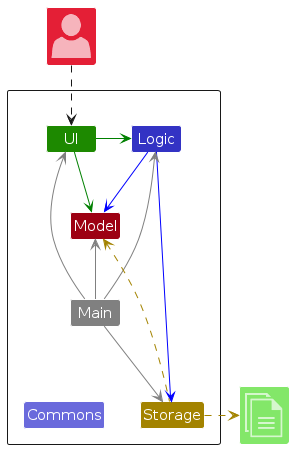
The Architecture Diagram given above explains the high-level design of the App. Given below is a quick overview of main components and how they interact with each other.
Main components of the architecture
Main (consisting of classes Main and MainApp) is in charge of the app launch and shut down.
- At app launch, it initializes the other components in the correct sequence, and connects them up with each other.
- At shut down, it shuts down the other components and invokes cleanup methods where necessary.
The bulk of the app's work is done by the following four components:
UI: The UI of the App.Logic: The command executor.Model: Holds the data of the App in memory.Storage: Reads data from, and writes data to, the hard disk.
Commons represents a collection of classes used by multiple other components.
How the architecture components interact with each other
The Sequence Diagram below shows how the components interact with each other for the scenario where the user issues the command delete 1.
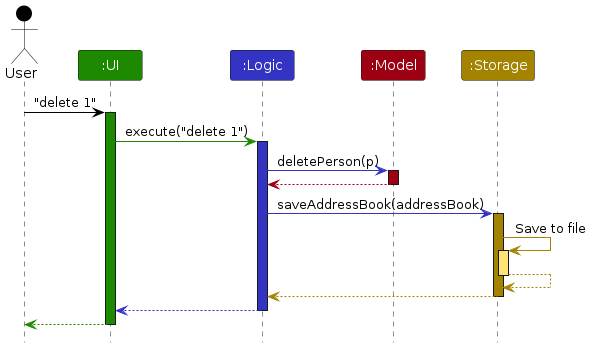
Each of the four main components (also shown in the diagram above),
- defines its API in an
interfacewith the same name as the Component. - implements its functionality using a concrete
{Component Name}Managerclass (which follows the corresponding APIinterfacementioned in the previous point.
For example, the Logic component defines its API in the Logic.java interface and implements its functionality using the LogicManager.java class which follows the Logic interface. Other components interact with a given component through its interface rather than the concrete class (reason: to prevent outside component's being coupled to the implementation of a component), as illustrated in the (partial) class diagram below.
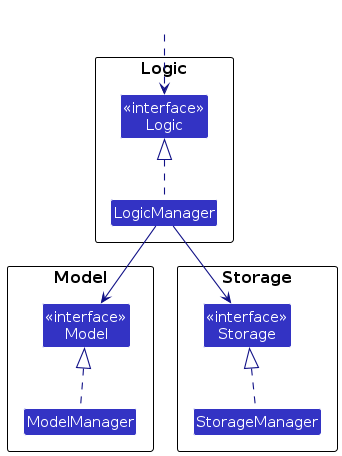
The sections below give more details of each component.
UI component
The API of this component is specified in Ui.java
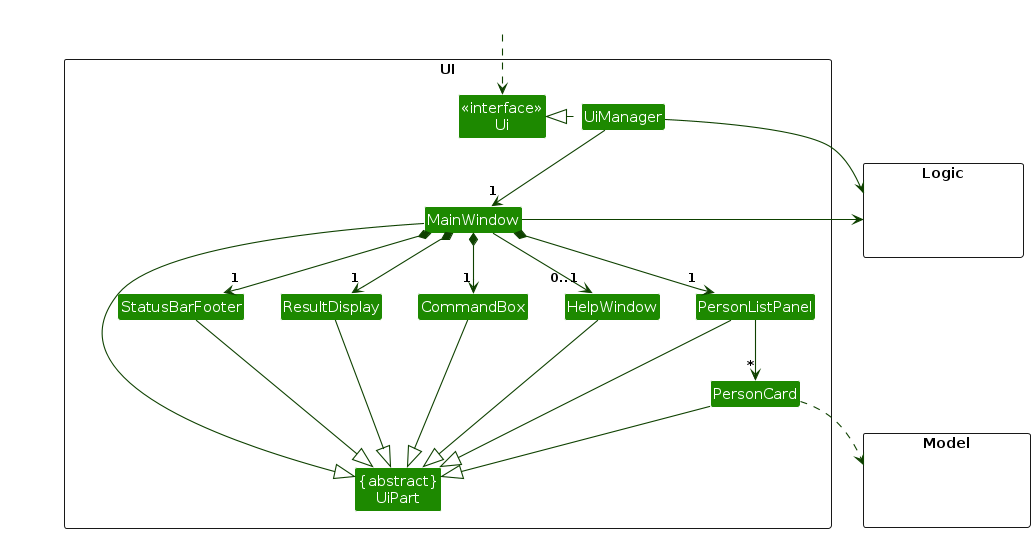
The UI consists of a MainWindow that is made up of parts e.g.CommandBox, ResultDisplay, PersonListPanel, StatusBarFooter etc. All these, including the MainWindow, inherit from the abstract UiPart class which captures the commonalities between classes that represent parts of the visible GUI.
The UI component uses the JavaFx UI framework. The layout of these UI parts are defined in matching .fxml files that are in the src/main/resources/view folder. For example, the layout of the MainWindow is specified in MainWindow.fxml
The UI component:
- Executes user commands using the
Logiccomponent. - Listens for changes to
Modeldata so that the UI can be updated with the modified data. - Keeps a reference to the
Logiccomponent, because theUIrelies on theLogicto execute commands. - Depends on some classes in the
Modelcomponent, as it displaysPersonobject residing in theModel.
Logic component
API : Logic.java
Here's a (partial) class diagram of the Logic component:

The sequence diagram below illustrates the interactions within the Logic component, taking execute("delete 1") API call as an example.
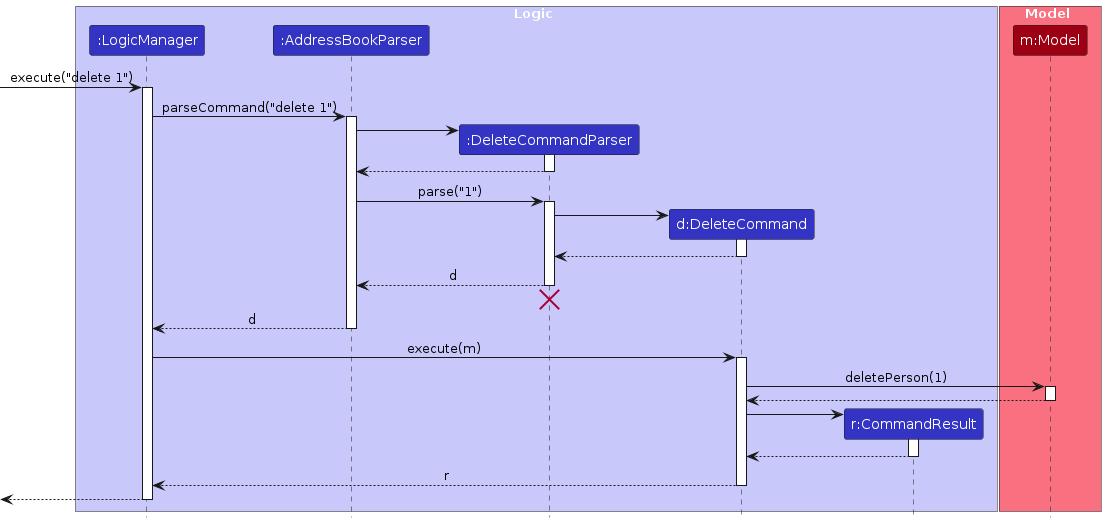
Note: The lifeline for DeleteCommandParser should end at the destroy marker (X) but due to a limitation of PlantUML, the lifeline continues till the end of diagram.
How the Logic component works:
- When
Logicis called upon to execute a command, it is passed to anAddressBookParserobject which in turn creates a parser that matches the command (e.g.,DeleteCommandParser) and uses it to parse the command. - This results in a
Commandobject (more precisely, an object of one of its subclasses e.g.,DeleteCommand) which is executed by theLogicManager. - The command can communicate with the
Modelwhen it is executed (e.g. to delete a person).
Note that although this is shown as a single step in the diagram above (for simplicity), in the code it can take several interactions (between the command object and theModel) to achieve. - The result of the command execution is encapsulated as a
CommandResultobject which is returned back fromLogic.
Here are the other classes in Logic (omitted from the class diagram above) that are used for parsing a user command:
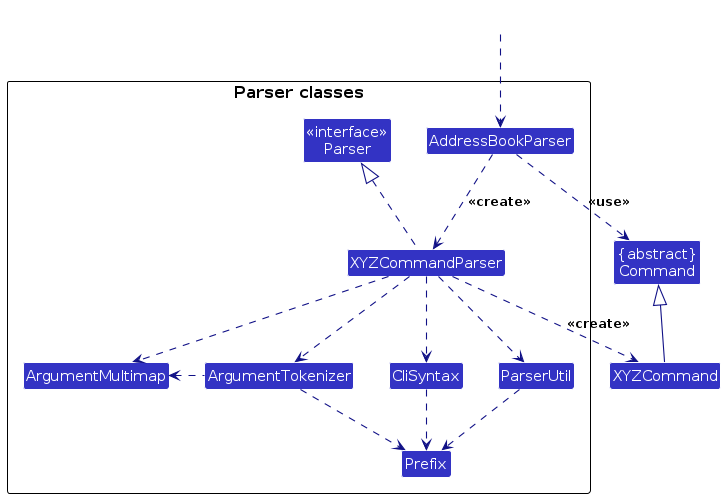
How the parsing works:
- When called upon to parse a user command, the
AddressBookParserclass creates anXYZCommandParser(XYZis a placeholder for the specific command name e.g.,AddCommandParser) which uses the other classes shown above to parse the user command and create aXYZCommandobject (e.g.,AddCommand) which theAddressBookParserreturns back as aCommandobject. - All
XYZCommandParserclasses (e.g.,AddCommandParser,DeleteCommandParser, ...) inherit from theParserinterface so that they can be treated similarly where possible e.g, during testing.
Model component
API : Model.java
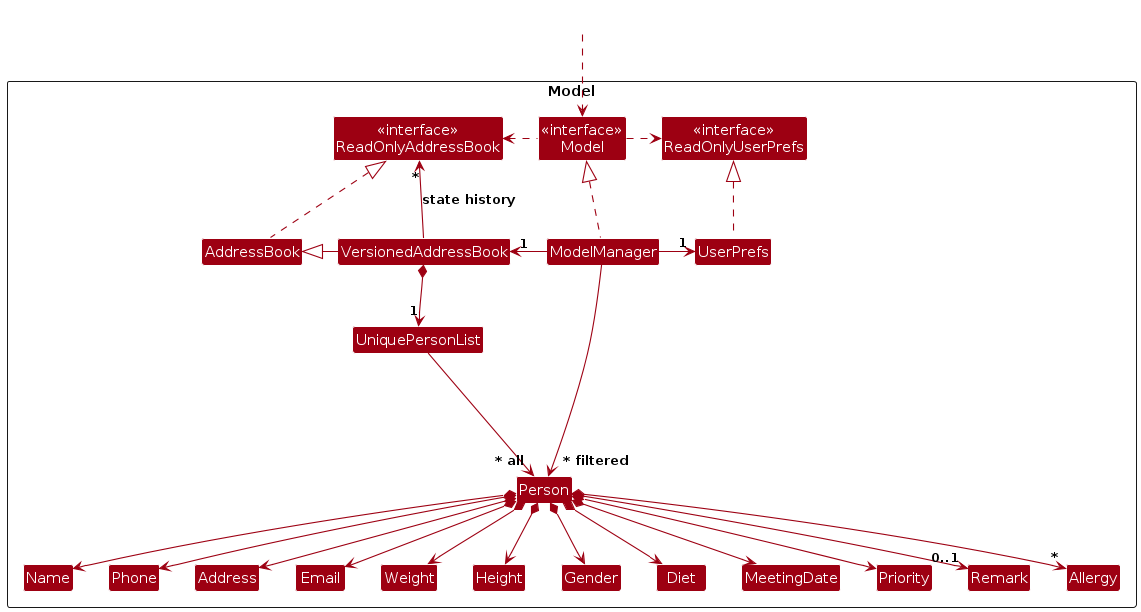
The Model component:
- Stores the address book data i.e., all
Personobjects (which are contained in aUniquePersonListobject). - Stores the currently 'selected'
Personobjects (e.g., results of a search query) as a separate filtered list which is exposed to outsiders as an unmodifiableObservableList<Person>that can be 'observed' e.g. the UI can be bound to this list so that the UI automatically updates when the data in the list change. - Stores a
UserPrefobject that represents the user’s preferences. This is exposed to the outside as aReadOnlyUserPrefobjects. - Does not depend on any of the other three components (as the
Modelrepresents data entities of the domain, they should make sense on their own without depending on other components)
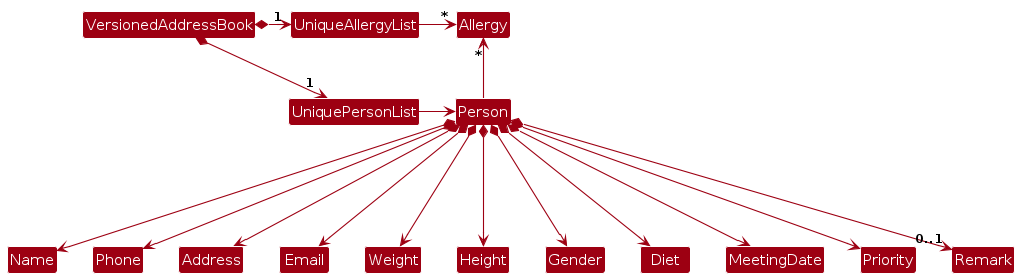
Note: An alternative (arguably, a more OOP) model is given below. It has a Allergy list in the AddressBook, which Person references. This allows AddressBook to only require one Allergy object per unique allergy, instead of each Person needing their own Allergy objects.
Storage component
API : Storage.java
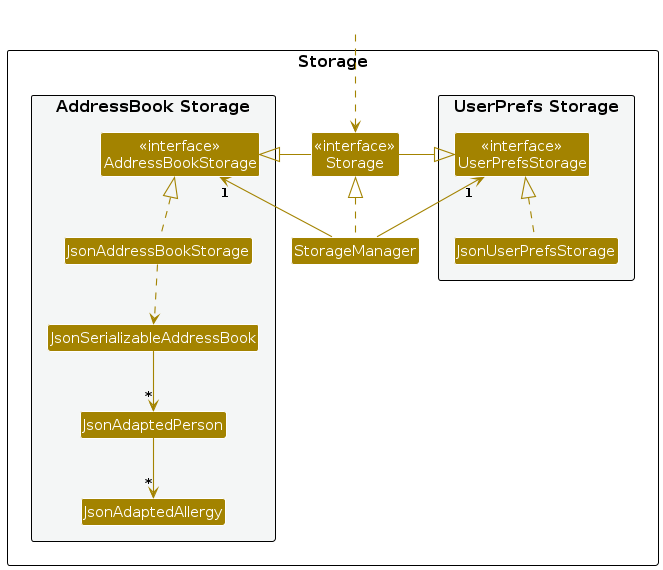
The Storage component:
- can save both address book data and user preference data in JSON format, and read them back into corresponding objects.
- inherits from both
AddressBookStorageandUserPrefStorage, which means it can be treated as either one (if only the functionality of only one is needed). - depends on some classes in the
Modelcomponent (because theStoragecomponent's job is to save/retrieve objects that belong to theModel)
Common classes
Classes used by multiple components are in the seedu.address.commons package.
Implementation
This section describes some noteworthy details on how certain features are implemented.
Add Command Implementation
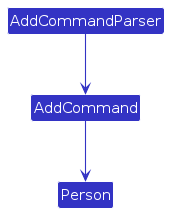
The AddCommand allows the user to register a new patient by specifying all the required fields such as name, gender, contact details, dietary needs, and medical priorities. This command ensures that each patient added is unique based on the email field.
Key Code Snippets
- Command Execution (Checks for duplicates before adding):
@Override
public CommandResult execute(Model model) throws CommandException {
    requireNonNull(model);
    if (model.hasPerson(toAdd)) {
        throw new CommandException(MESSAGE_DUPLICATE_PERSON);
    }
    model.addPerson(toAdd);
    return new CommandResult(String.format(MESSAGE_SUCCESS, Messages.format(toAdd)));
}
- Example Usage:
add n/John Doe g/m h/1.75 w/70.00 no/98765432 e/john@example.com a/123 Street d/low sodium pr/high m/2025-12-31 al/peanuts
Developer Notes
- Validation: The Person constructor validates fields (e.g., Email format, Height range).
- Duplicate person criteria: If the email entered already exists in VitaBook, the person will be considered a duplicate. This is because in our unique context, the nutritionist uses the email to primarily contact the patient and send sensitive documents.
- Case Sensitivity: Allergies (al/) are case-insensitive (stored in lowercase).
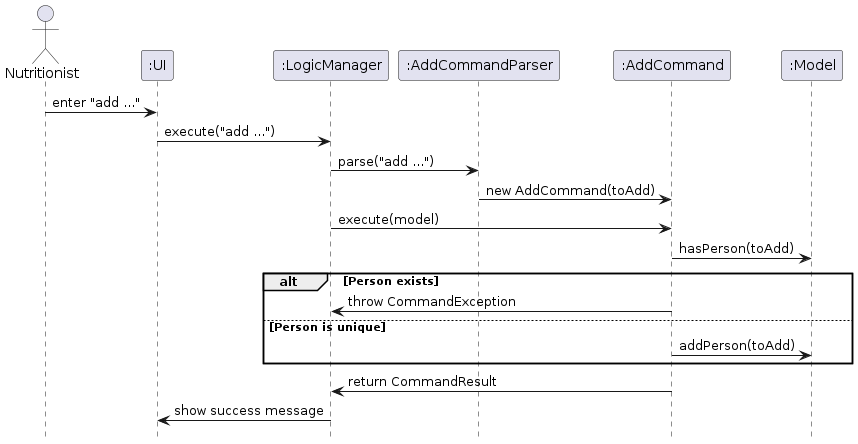
When a user issues a command such as add n/John d/regular(simplified for this example, this command does not actually run in VitaBook), the following sequence of operations occurs:
- The input is parsed by
AddCommandParser, which creates aPersonobject and wraps it inside anAddCommand. - The
LogicManagerexecutes the command by calling itsexecute(Model model)method. - Inside
AddCommand#execute(), theModelis checked for any duplicate entries usinghasPerson(). - If no duplicates are found, the new
Personis added to the address book viamodel.addPerson(). - A
CommandResultis returned with a success message.
The following sequence diagram outlines the flow of the AddCommand:
Edit Command Implementation
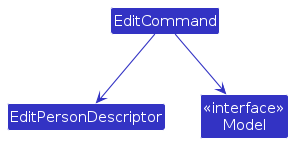
The EditCommand allows users to update one or more fields of an existing patient in the list. Fields that are not specified in the command remain unchanged.
Key Components
EditPersonDescriptor: A helper class to track which fields are modified.- Partial Updates: Only updates non-null fields in the descriptor.
Key Code Snippets
- Creating an Edited Person (merges old and new fields)
private static Person createEditedPerson(Person personToEdit, EditPersonDescriptor descriptor) {
    Name updatedName = descriptor.getName().orElse(personToEdit.getName());
    Phone updatedPhone = descriptor.getPhone().orElse(personToEdit.getPhone());
    // ... (other fields)
    return new Person(updatedName, updatedPhone, ...);
}
- Example Usage:
edit 1 no/91234567 e/new@example.com
Developer Notes
- Immutable Objects: Person is immutable; edits create a new object.
- Index Handling: Uses Index class to validate list bounds.
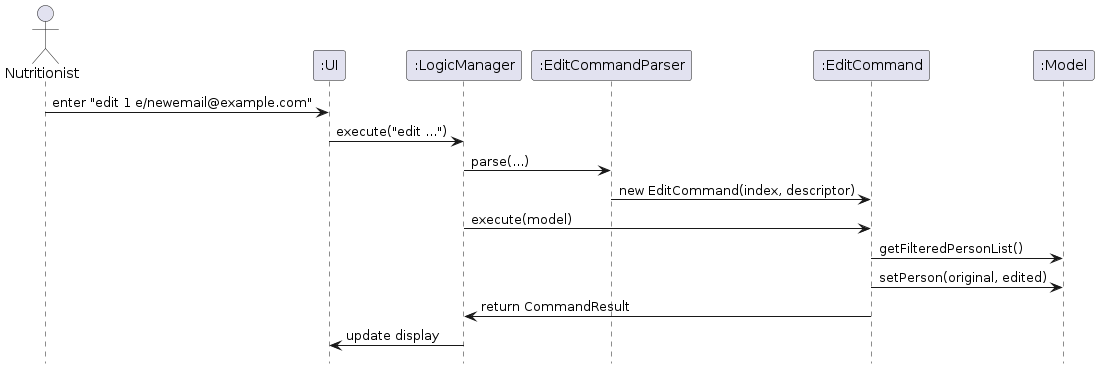
When a user issues a command such as edit 1 e/john@example.com, the following steps take place:
- The command is parsed by
EditCommandParser, which produces anEditCommandwith an index and anEditPersonDescriptor. - The
LogicManagerinvokes theexecute()method of theEditCommand. - Inside
EditCommand#execute(), the selected patient is fetched from the filtered list using the index. - A new
Personis created by merging the original details with the updated fields fromEditPersonDescriptor. - If the new
Personis not a duplicate,model.setPerson()replaces the original person. - A
CommandResultis returned indicating the successful update.
The sequence diagram below depicts the interaction of components involved:
Clear Command Implementation

The ClearCommand removes all patient entries from the address book. To prevent accidental deletions, a confirmation dialog is shown (unless bypassed in test scenarios).
Key Code Snippets
- Confirmation Dialog (UI interaction)
if (!requireConfirmation || ClearDialogUtil.showConfirmationDialog(...)) {
    model.setAddressBook(new AddressBook());
    return new CommandResult(MESSAGE_SUCCESS);
}
- Example Usage:
clear
Developer Notes
- Safety Net: Confirmation is skipped in tests (
requireConfirmation = false). - Empty Check: Early return if the address book is already empty.
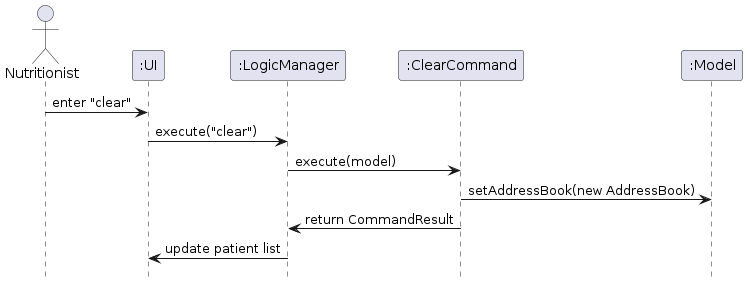
When the user enters clear, the command follows this sequence:
LogicManagercalls theexecute()method of theClearCommand.- If the address book is already empty, a message is returned immediately.
- If confirmation is required, the UI invokes
ClearDialogUtil.showConfirmationDialog(). - Upon confirmation, a new, empty
AddressBookreplaces the current one viamodel.setAddressBook(). - A
CommandResultwith a success message is returned.
The process is visualized in the following sequence diagram:
Priority Command Implementation
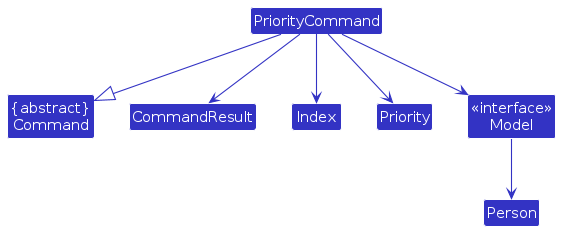
The PriorityCommand allows the nutritionist to update the priority level (e.g., HIGH, MEDIUM, LOW) of a selected patient from the filtered list. This command is helpful in identifying high-risk patients for urgent follow-up.
Key Command Implementation
- Updating Priority
Person updatedPerson = new Person(
    originalPerson.getName(),
    originalPerson.getGender(),
    // ... (other fields)
    newPriority,  // Updated field
    originalPerson.getMeetingDate(),
    originalPerson.getAllergies()
);
- Example usage:
priority 2 pr/high
Developer Notes
- Shortcut:
prcan be used in place ofpriority.
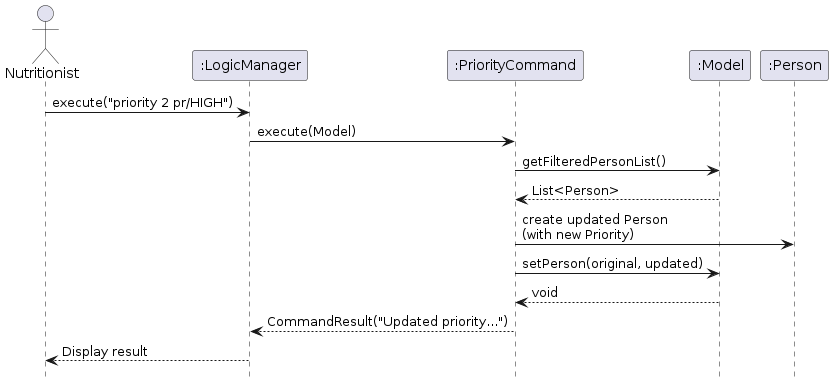
When a user issues a command such as priority 2 pr/HIGH, the following sequence of operations occurs:
- The input is parsed by
PriorityCommandParser, which creates aPriorityCommandobject. - The
LogicManagerreceives the command and calls itsexecute(Model model)method. - Inside
PriorityCommand#execute(), theModelis queried for the current filtered list of persons. - The patient at the specified index is retrieved and a new
Personobject is created with the updatedPriority. - The
Model#setPerson()method replaces the original person with the updated one in the internal list. - A
CommandResultis returned with a success message.
The sequence diagram below illustrates the interactions between the components when executing the priority command:
Sort Command Implementation
The sequence below illustrates the interactions within the Logic component, taking execute("sort priority") call as an example.
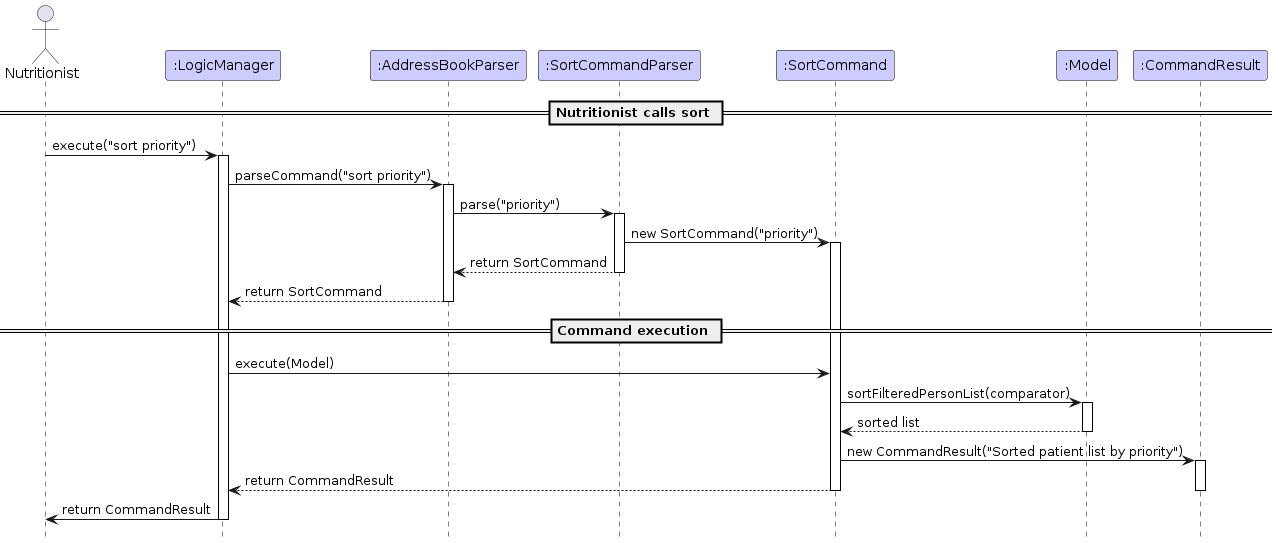
Note: The lifeline for SortCommandParser should end at the destroy marker (X), but due to a limitation of PlantUML, the lifeline continues till the end of the diagram.
Key Code Snippets
- Comparator Logic (Priority-first, then name):
Comparator<Person> comparator = Comparator
    .comparing((Person p) -> p.getPriority().getValue().ordinal()).reversed()
    .thenComparing(p -> p.getName().toString().toLowerCase());
- Example usage:
sort priority
Developer Notes
- Extensibility: New sort criteria can be added by extending the switch block.
SortCommand behaviour:
- When the
LogicManageris called to execute thesort prioritycommand, it first delegates the parsing toAddressBookParser. AddressBookParserrecognises the command type and usesSortCommandParserto interpret the command arguments.SortCommandParsercreates a newSortCommandobject with the given sort type (priority).- The constructed
SortCommandis returned toLogicManager, which then calls itsexecute()method. - Within
execute(),SortCommandinvokedmodel.sortFilteredPersonList(comparator)to sort the current patient list based on the specified criterion. - A
CommandResultobject is created to encapsulate the success message and is returned up the call stack to the UI.
Filter Command Implementation
The sequence diagram below illustrates the interactions within the Logic component, taking execute("filter d/low fat") call as an example.
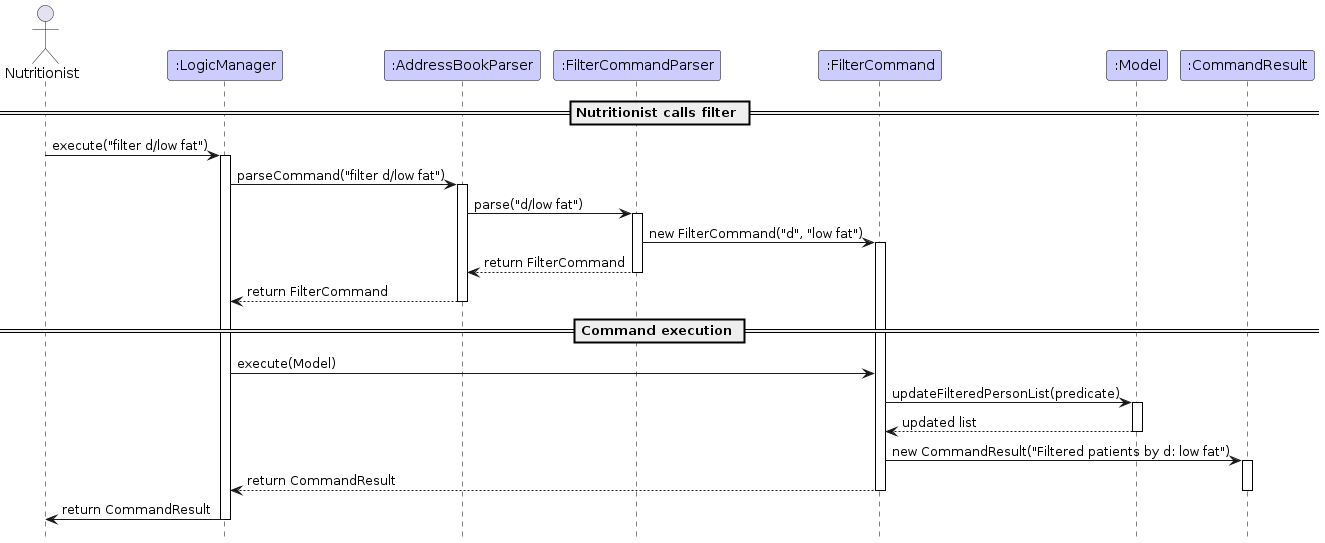
Note: The lifeline for FilterCommandParser should end at the destroy marker (X), but due to a limitation of PlantUML, the lifeline continues till the end of the diagram.
Key Code Snippets
- Predicate Construction (Dynamic filtering):
Predicate<Person> filterPredicate = switch (prefix) {
    case "d" -> person -> person.getDiet().toString().equalsIgnoreCase(value);
    case "g" -> person -> person.getGender().toString().equalsIgnoreCase(value);
    // ... (other cases)
};
- Example usage:
filter d/low fat
Developer Notes
- Case Insensitivity:
filtertakes in values that are case-insensitive (e.g., d/Low Fat matches low fat).
FilterCommand behaviour:
- When the
LogicManagerreceives thefilter d/low fatcommand, it callsAddressBookParserto parse the command. AddressBookParserrecognises that it is afiltercommand and passes control toFilterCommandParser.FilterCommandParsersplits the input into the prefix (d) and the value (low fat), then constructs aFilterCommandobject with the parsed arguments.- The
FilterCommandis returned to theLogicManager, which proceeds to execute it. - The
FilterCommandbuilds a predicate using the prefix and value, and applies it throughmodel.updateFilteredPersonList(predicate). - A
CommandResultcontaining the result message is returned to theLogicManager, and subsequently to the UI.
Command History Implementation
The sequence diagram below illustrates the interaction flow when a user enters commands and navigates through command history
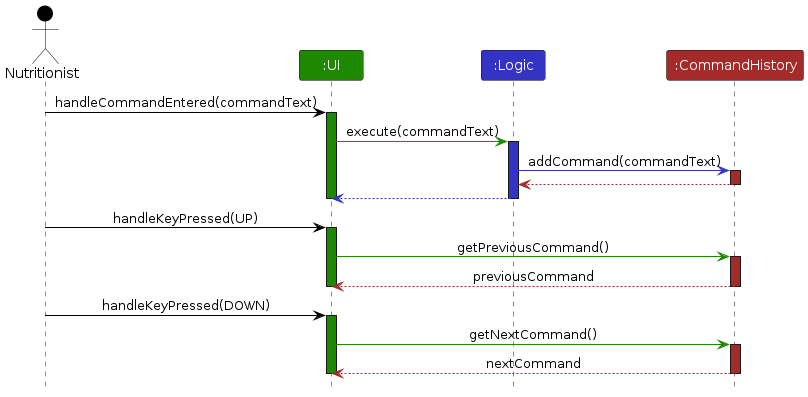
The CommandHistory class tracks all executed commands, allowing users to navigate through past commands using UP/DOWN arrow keys. It maintains:
- A list of commands (commandHistory).
- A pointer (currentIndex) to track navigation position.
Key Code Snippets
- Storing Commands:
public void addCommand(String command) {
    commandHistory.add(command);
    currentIndex = commandHistory.size(); // Reset pointer to end
}
- Navigation:
public String getPreviousCommand() {
    if (currentIndex <= 0) return null;
    currentIndex--;
    return commandHistory.get(currentIndex);
}

public String getNextCommand() {
    if (currentIndex >= commandHistory.size() - 1) return null;
    currentIndex++;
    return commandHistory.get(currentIndex);
}
Developer Notes
- Pointer Reset: currentIndex resets to the end after each new command.
- Null Handling: Returns null when reaching history bounds (no-op in UI).
- Thread Safety: Not thread-safe; assumes single-threaded UI access.
CommandHistory behaviour:
- User Interaction: The user inputs commands through the
CommandBoxin the UI, which are captured and processed by the system. - Logic Processing: The
LogicManagerprocesses these commands using theAddressBookParserto identify and execute the appropriate command, interacting with theModelas needed. - Command History: Each executed command is recorded in
CommandHistory, allowing users to navigate through past commands using the UP and DOWN arrow keys. This navigation updates the command input field, facilitating easy re-execution or modification of previous commands.
Undo/redo Command Implementation
The undo/redo mechanism is facilitated by VersionedAddressBook. It extends AddressBook with an undo/redo history, stored internally as an addressBookStateList and currentStatePointer.
Key Code Snippets
- State Management (VersionedAddressBook):
public void commit() {
    // Purge future states if pointer is not at end
    addressBookStateList.subList(currentStatePointer + 1, addressBookStateList.size()).clear();
    addressBookStateList.add(new AddressBook(this));
    currentStatePointer++;
}
- Undo/Redo Execution:
// UndoCommand.java
public CommandResult execute(Model model) throws CommandException {
    if (!model.canUndoAddressBook()) {
        throw new CommandException(MESSAGE_FAILURE);
    }
    model.undoAddressBook();
    return new CommandResult(MESSAGE_SUCCESS);
}

// RedoCommand.java (similar logic)
Developer Notes
- Immutable States: Each snapshot is a deep copy of AddressBook.
- Non-Modifying Commands: list, find, sort, help do not trigger commits.
- UI Sync: The UI refreshes automatically after undo/redo via Model observers.
Additionally, it implements the following operations:
VersionedAddressBook#commit()— Saves the current address book state in its history.VersionedAddressBook#undo()— Restores the previous address book state from its history.VersionedAddressBook#redo()— Restores a previously undone address book state from its history.
These operations are exposed in the Model interface as Model#commitAddressBook(), Model#undoAddressBook() and Model#redoAddressBook() respectively. Given below is an example usage scenario and how the undo/redo mechanism behaves at each step.
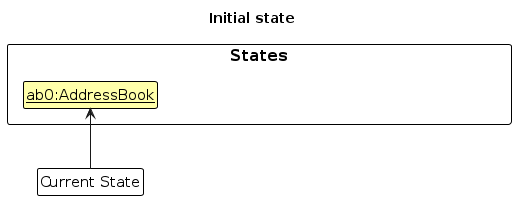
- The user launches the application for the first time. The
VersionedAddressBookwill be initialized with the initial address book state, and thecurrentStatePointerpointing to that single address book state.
- The user executes
delete 5command to delete the 5th person in the address book. Thedeletecommand callsModel#commitAddressBook(), causing the modified state of the address book after thedelete 5command executes to be saved in theaddressBookStateList, and thecurrentStatePointeris shifted to the newly inserted address book state.
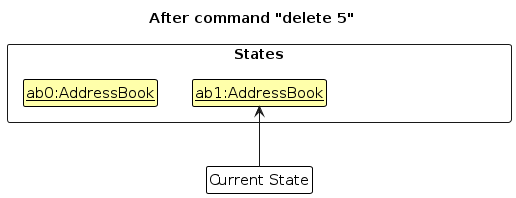
- The user executes
add n/David …to add a new person. Theaddcommand also callsModel#commitAddressBook(), causing another modified address book state to be saved into theaddressBookStateList.
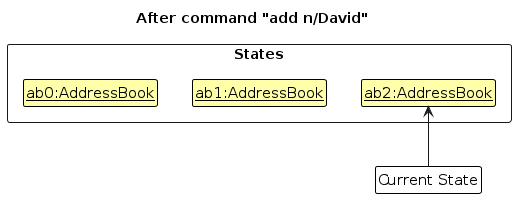
Note: If a command fails its execution, it will not call Model#commitAddressBook(), so the address book state will not be saved into the addressBookStateList.
- The user now decides that adding the person was a mistake, and decides to undo that action by executing the
undocommand. Theundocommand will callModel#undoAddressBook(), which will shift thecurrentStatePointeronce to the left, pointing it to the previous address book state, and restores the address book to that state.
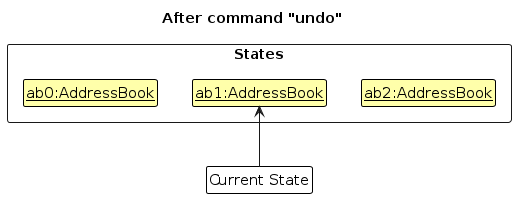
Note: If the currentStatePointer is at index 0, pointing to the initial AddressBook state, then there are no previous AddressBook states to restore. The undo command uses Model#canUndoAddressBook() to check if this is the case. If so, it will return an error to the user rather
than attempting to perform the undo.
The following sequence diagram shows how an undo operation goes through the Logic component:
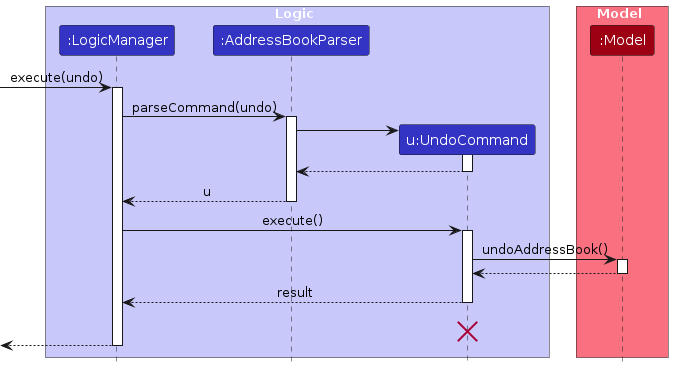
Note: The lifeline for UndoCommand should end at the destroy marker (X) but due to a limitation of PlantUML, the lifeline reaches the end of diagram.
Similarly, how an undo operation goes through the Model component is shown below:
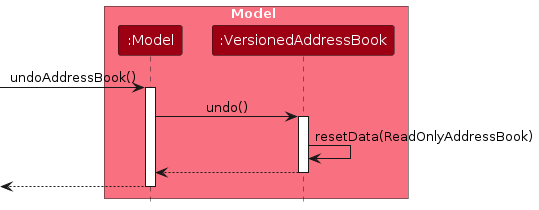
The redo command does the opposite — it calls Model#redoAddressBook(), which shifts the currentStatePointer once to the right, pointing to the previously undone state, and restores the address book to that state.
Note: If the currentStatePointer is at index addressBookStateList.size() - 1, pointing to the latest address book state, then there are no undone AddressBook states to restore. The redo command uses Model#canRedoAddressBook() to check if this is the case. If so, it will return an error to the user rather than attempting to perform the redo.
- The user then decides to execute the command
list. Commands that do not modify the address book, such aslist, will usually not callModel#commitAddressBook(),Model#undoAddressBook()orModel#redoAddressBook(). Thus, theaddressBookStateListremains unchanged.
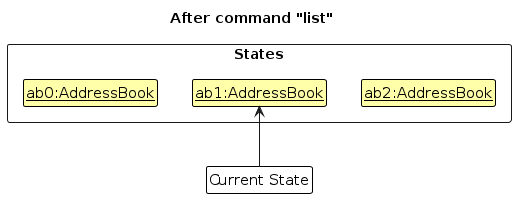
- The user executes
clear, which callsModel#commitAddressBook(). Since thecurrentStatePointeris not pointing at the end of theaddressBookStateList, all address book states after thecurrentStatePointerwill be purged. Reason: It no longer makes sense to redo theadd n/David …command. This is the behavior that most modern desktop applications follow.
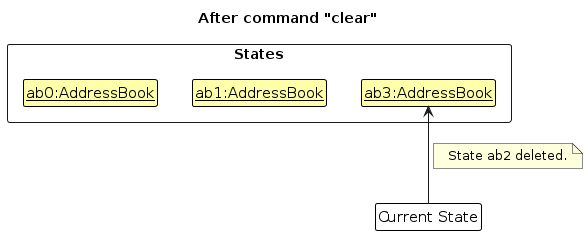
The following activity diagram summarizes what happens when a user executes a new command:
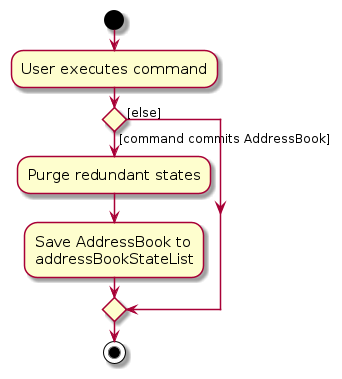
- State Purge: Executing a new command after an undo will purge the redo history. Only relevant states are restorable.
Edge Cases
Command-Specific Edge Cases
| Command | Edge Case | System Response | Handling Mechanism |
|---|---|---|---|
| Add | Duplicate patient (same name + phone) | "This person already exists in VitaBook" | AddCommand#execute() checks model.hasPerson() |
Missing required fields (e.g., no n/NAME) | Shows "The following required field(s) is/are missing: n/" with MESSAGE_USAGE and format | AddCommandParser validates prefixes | |
Invalid field format (e.g., h/abc) | "Height should be a number between 0.5 and 3.0 meters, and it should not be blank" | Field class constructors validate input | |
| Edit | Invalid index (e.g., edit 999 n/John) | "Invalid patient index" | Checks index.getZeroBased() >= list.size() |
| No fields edited | "At least one field to edit must be provided" | EditPersonDescriptor#isAnyFieldEdited() | |
| Duplicate after edit | "This patient already exists in VitaBook" | model.hasPerson() check | |
| Clear | Empty address book | "No patients in VitaBook!" | model.getAddressBook().isEmpty() check |
| User cancels confirmation | "Clear command cancelled." | ClearDialogUtil.showConfirmationDialog() | |
| Priority | Invalid priority value (e.g., pr/INVALID) | "Priority must be high, medium, or low" | Priority enum validation |
| Invalid index | "Invalid patient index." | Index bounds check | |
| Sort | Invalid sort type (e.g., sort invalid) | "Invalid sort type. Use: sort priority / sort name / sort diet / sort meetingdate" | switch default case throws error |
| Empty list | Silent (no action) | Implicit in sorting logic | |
| Filter | Invalid prefix (e.g., filter x/abc) | "Invalid filter prefix: 'x' wtih MESSAGE_USAGE and format | Default switch case |
| No matches | Empty list (no error) | Predicate returns false for all | |
| Undo/Redo | Undo at initial state | "No previous state to undo. Already at initial state." | model.canUndoAddressBook() check |
| Redo at latest state | "No next state to redo. Already at final state." | model.canRedoAddressBook() check | |
Non-modifying command (e.g., list) | No state change | Skips Model#commitAddressBook() | |
| Executing a new command after an undo | Purges the redo history | VersionedAddressBook#commit() |
General Edge Cases
| Scenario | System Response | Handling Mechanism |
|---|---|---|
| Incorrect Command Format | Shows command-specific MESSAGE_USAGE | *CommandParser classes validate syntax |
| Empty Input | Displays help menu | ParserUtil checks for empty strings |
| File Corruption | Creates new empty data file | Storage class handles IO exceptions |
| Keyboard Interrupt | Returns to command prompt | CLI main loop catches Ctrl+C |
Documentation, logging, testing, configuration, dev-ops
Appendix: Requirements
Product scope
Target user profile:
- Role: Works as a freelance nutritionist, often visiting multiple patients daily
- Needs:
- Has a need to manage a significant number of patient profiles, including patient information, medical history, dietary restrictions, and follow-ups
- CLI-first workflow for speed (typing > GUI interactions).
- Portability: No installation needed; works on any OS with Java 17+.
- Pain Points:
- Time wasted on manual data entry in traditional GUI apps.
- Difficulty tracking patient updates across devices.
Value Proposition:
VitaBook is a command-line interface (CLI) application designed for freelance nutritionists who need to manage patient profiles efficiently. It offers:
- Speed: Perform tasks 3x faster than GUI apps with keyboard-only commands (e.g., add a patient in under 10 seconds).
- Organization: Filter/sort patients by diet, priority, or meeting date with simple commands (e.g.,
filter d/low carb). - Portability: Runs on any OS (Windows/macOS/Linux) with Java 17+—no installation needed. Just launch the JAR file.
- Data Control: Human-editable JSON storage for easy backups and manual edits.
"VitaBook cuts patient management time by 50%, letting you focus on care—not paperwork."
User stories
| As a … | I want to … | So that I can… | Notes |
|---|---|---|---|
| Busy Nutritionist | Search for a patient by name (even with partial input) | Quickly access relevant dietary information | Search results support partial matches to allow flexible and fast searching, even if the full name is not remembered exactly. |
| Busy Nutritionist | Add tags to classify my patients easily | Easily filter and find the relevant patients | Allow for multiple tags per patient. The system should allow filtering based on tags. |
| Busy Nutritionist | Undo my last action when using the application | Easily revert to the original state in the event of mistakes or change of plans | Limits to actions that modify data only. |
| Busy Nutritionist | Schedule Follow-up Appointment | See and review patient’s status after an appropriate time | |
| Busy Nutritionist | Set reminders for follow-up appointments | Not forget important patient visits | Notifications should appear on a dashboard. |
| Busy Nutritionist | Receive notifications about patient dietary updates | Stay informed | Push/email notifications should be configurable. |
| Elderly Nutritionist | Enable high-contrast colors | Easily read and navigate the app | A toggle option for high contrast should be available in settings. |
| Elderly Nutritionist | Increase the font size | Read text comfortably | Font size settings should be adjustable in the UI. |
| First-Time Nutritionist | Ensure no duplicates in the patient’s information are added | Refer to the correct information and make necessary changes | Alert the user of possible duplication when adding a new patient. |
| First-Time Nutritionist | Access the application’s help function | Learn how to use the application effectively | List down all available commands that the user can use. |
| First-Time Nutritionist | See some sample patients when I open the app | Easily try out its features without needing to add my data first | |
| Nutritionist | Add new patients to the system | Maintain an updated record of my clients | Each new patient should have a unique profile. |
| Nutritionist | Delete patient records | Remove outdated or irrelevant data | A confirmation prompt should appear before deletion. |
| Nutritionist | Clear all data in the application | Reset the application when necessary | Requires confirmation to prevent accidental reset. |
| Nutritionist | Filter patients based on dietary conditions | Group similar cases | Filters should be easy to apply and reset. |
| Nutritionist | Edit/Update patient information | Keep records accurate | Changes should be logged with timestamps. |
| Nutritionist | View a patient's information | Make informed dietary recommendations | Medical history should be displayed clearly and concisely. Allergies should be highlighted. |
| Nutritionist | Archive patients that no longer require visits | Keep track of their information, yet not clutter up the address book | Able to retrieve archived information easily when needed. |
| Nutritionist | Upload and attach files to patient profiles | Have all relevant data in one place | Users should be able to upload PDFs, images, and other common file types. |
| Nutritionist | Sort patients based on name | Find patients at a glance | Sorting options can allow easy finding of patients. |
| Nutritionist | Mark high-risk patients | Quickly identify those needing urgent attention | High-risk patients should be visually highlighted. |
| Nutritionist | Add emergency contacts to a patient profile | Contact them in urgent situations | Emergency contacts should be stored and easily accessible. |
| Nutritionist | Add custom notes to a patient’s profile | Track observations over time | Notes should be editable and timestamped. |
User stories for the MVP version:
| As a … | I want to … | So that I can… | Notes |
|---|---|---|---|
| Nutritionist | View a patient's medical history, food allergies, and dietary restrictions | Make informed dietary recommendations | Medical history should be displayed clearly and concisely. Allergies should be highlighted in the profile. |
| Nutritionist | Add new patients to the system | Maintain an updated record of my clients | Each new patient should have a unique profile. |
| Nutritionist | Delete patient records | Remove outdated or irrelevant data | A confirmation prompt should appear before deletion. |
Use cases
(For all use cases below, the System is the VitaBook and the Actor is the Nutritionist (user), unless specified otherwise)
Use Case: UC01 - Add Patient
MSS:
| No. | MSS | Extensions |
|---|---|---|
| 1 | Nutritionist decides to register a new patient in VitaBook. | N.A. |
| 2 | Nutritionist types the add command followed by all required patient details in the specified format. | N.A. |
| 3 | VitaBook checks that all fields (name, gender, height, weight, phone, email, address, diet, priority, meeting date) are present and correctly formatted. | One or more fields are invalid or missing. (a) VitaBook displays an error message specifying the field(s) that need correction. (b) Nutritionist retypes the command with corrected input. |
| 4 | VitaBook checks that the email is unique. | A patient with the same email already exists. (a) VitaBook rejects the addition and displays a duplicate email error. (b) Nutritionist provides a different email. Use case resumes from step 3. |
| 5 | VitaBook adds the new patient to the system. | Patient is added from a filtered list. (a) VitaBook uses the filtered index correctly. |
| 6 | VitaBook displays a success message with the newly added patient’s summary. After adding, VitaBook returns to displaying the full list, ordered by the order of entry or by the last sort criteria applied. Use case ends. | N.A. |
Use Case: UC02 - List Patients
MSS:
| No. | MSS | Extensions |
|---|---|---|
| 1 | Nutritionist wants to view all registered patients. | N.A. |
| 2 | Nutritionist types the list command. | N.A. |
| 3 | VitaBook displays the complete list of patients, ordered by the order of entry or by the last sort criteria applied. Use case ends. | (a) If the patient list was previously sorted, listing will display the full list sorted by the last sort criteria. (b) If the patient list was previously filtered, listing will reset the list to show all patients (full list). |
Use Case: UC03 - Edit Patient
MSS:
| No. | MSS | Extensions |
|---|---|---|
| 1 | Nutritionist identifies a patient whose details need updating. | N.A. |
| 2 | Nutritionist types the edit command followed by the patient's index and the updated fields. | No fields are provided to update. (a) VitaBook displays an error indicating at least one field is required. |
| 3 | VitaBook validates the index and ensures the patient exists. | Index is invalid. (a) VitaBook displays an index error message. (b) Nutritionist re-enters the command with a valid index. |
| 4 | VitaBook validates all provided input fields. | A field contains invalid data. (a) VitaBook displays specific validation errors. (b) Nutritionist corrects and retypes the command. |
| 5 | VitaBook updates the patient information accordingly. | Patient is edited from a filtered list. (a) VitaBook uses the filtered index correctly. |
| 6 | VitaBook displays a confirmation message with updated details. After editing, VitaBook returns to displaying the full list, ordered by the order of entry or by the last sort criteria applied. Use case ends. | N.A. |
Use Case: UC04 - Add or Update Remark
MSS:
| No. | MSS | Extensions |
|---|---|---|
| 1 | Nutritionist wants to add or update a note about a patient’s condition or behavior. | N.A. |
| 2 | Nutritionist enters the remark command followed by the index of the patient and the remark content. | No remark content is provided. (a) VitaBook clears the existing re mark and confirms the update. |
| 3 | VitaBook validates the index. | Index is invalid. (a) VitaBook displays an error. (b) Nutritionist corrects the index. |
| 4 | VitaBook updates or adds the remark for the patient. | Patient is added/edited from a filtered list. (a) VitaBook uses the filtered index correctly. |
| 5 | VitaBook displays a success message. After adding/editing a remark, VitaBook returns to displaying the full list, ordered by the order of entry or by the last sort criteria applied. Use case ends. | N.A. |
Use Case: UC05 - Change Patient Priority
MSS:
| No. | MSS | Extensions |
|---|---|---|
| 1 | Nutritionist reviews a patient’s condition and decides their priority level needs updating. | N.A. |
| 2 | Nutritionist types the pr command with the patient index and new priority (high, medium, or low). | Invalid index. (a) VitaBook displays an error. (b) Nutritionist retypes the command. |
| 3 | VitaBook validates the index and new priority value. | Priority value is not among allowed options. (a) VitaBook displays constraint error. (b) Nutritionist retries with a valid priority. |
| 4 | VitaBook updates the patient’s priority. | N.A. |
| 5 | VitaBook displays a confirmation message. Use case ends. | Patient's priority is set from a filtered list. (a) VitaBook stays on the current filtered list after updating the priority. |
Use Case: UC06 - Find Patient by Name
MSS:
| No. | MSS | Extensions |
|---|---|---|
| 1 | Nutritionist wants to find a patient based on their name. | N.A. |
| 2 | Nutritionist types the find command followed by one or more keywords. | No patients match the search. (a) VitaBook displays an empty result message. |
| 3 | VitaBook performs a case-insensitive search in the name fields. | N.A. |
| 4 | VitaBook displays a list of matching patients. Use case ends. | N.A. |
Use Case: UC07 - Filter Patients
MSS:
| No. | MSS | Extensions |
|---|---|---|
| 1 | Nutritionist wants to view patients by a specific criterion (e.g. diet, gender). | N.A. |
| 2 | Nutritionist types the filter command followed by a valid prefix and value (e.g. d/low sugar). | The filter prefix is invalid. (a) VitaBook displays an error message with correct format. |
| 3 | VitaBook applies the filter and displays matching patients, ordered by the order of entry or by the last sort criteria applied. Use case ends. | No patients match the filter. (a) VitaBook displays an empty list message. |
Use Case: UC08 - Sort Patients
MSS:
| No. | MSS | Extensions |
|---|---|---|
| 1 | Nutritionist wants to organize patients by a particular field (e.g. name). | N.A. |
| 2 | Nutritionist types the sort command with the desired field (e.g. sort name). | Field specified is invalid. (a) VitaBook shows a list of valid fields and an error message. |
| 3 | VitaBook sorts the patient list based on the chosen field. | N.A. |
| 3 | VitaBook displays the sorted list. Use case ends. | (a) If the list was filtered before sorting, only the filtered subset is sorted. |
Use Case: UC09 - Delete Patient
MSS:
| No. | MSS | Extensions |
|---|---|---|
| 1 | Nutritionist wants to remove a patient from the system. | N.A. |
| 2 | Nutritionist types the delete command with either an index or email. | The index or email is invalid or not found. (a) VitaBook displays an error. |
| 3 | VitaBook validates the input and deletes the patient. | N.A. |
| 3 | VitaBook displays a confirmation message. Use case ends. | Patient is deleted from a filtered list. (a) VitaBook stays on the current filtered list after the deletion. |
Use Case: UC10 - History Navigation
MSS:
| No. | MSS | Extensions |
|---|---|---|
| 1 | Nutritionist wants to reuse a previously entered command. | N.A. |
| 2 | Nutritionist presses the up ( ↑ ) or down ( ↓ ) arrow keys. | No previous or next command exists. (a) VitaBook does not change the current input. |
| 3 | VitaBook displays the previous or next command in the input box. | N.A. |
| 3 | Nutritionist can re-execute or modify it. Use case ends. | N.A. |
Use Case: UC11 - Clear All Patients
MSS:
| No. | MSS | Extensions |
|---|---|---|
| 1 | Nutritionist wants to remove all patient data. | N.A. |
| 2 | Nutritionist types the clear command. | The command was entered by mistake. (a) VitaBook may include a confirmation step before executing. |
| 3 | VitaBook deletes all patient entries. | N.A. |
| 3 | VitaBook confirms that the data has been cleared. Use case ends. | N.A. |
Use Case: UC12 - Exit Application
MSS:
| No. | MSS | Extensions |
|---|---|---|
| 1 | Nutritionist is done using the application. | N.A. |
| 2 | Nutritionist types the exit command. | N.A. |
| 3 | VitaBook saves any unsaved data. | N.A. |
| 3 | VitaBook shuts down the CLI. Use case ends. | N.A. |
Non-Functional Requirements (NFRs)
1. Performance
| ID | Requirement | Metric |
|---|---|---|
| P1 | 95% of commands (e.g., add, list) respond within 2 seconds for 1,000 patients. | ≤2s latency |
| P2 | Startup time (from launch to ready state) under 3 seconds. | 3s max |
| P3 | A user with above average typing speed for regular English text (i.e. not code, not system admin commands) should be able to accomplish most of the tasks faster using commands than using the mouse. | |
| P4 | The product's file size, including the JAR file and necessary assets, should not exceed 100MB. | |
| P5 | The user guide (UG) and design document (DG) should each be under 15MB, with optimized images and content to meet the file size limit. |
2. Usability
| ID | Requirement | Metric |
|---|---|---|
| U1 | A novice user should learn all basic commands within 15 minutes. | Tutorial completion time |
| U2 | CLI error messages must clearly explain how to fix the issue (e.g., Error: Missing 'n/'. Usage: add n/NAME...). | User testing feedback |
3. Compatibility
| ID | Requirement |
|---|---|
| C1 | Works on Windows 10+, macOS 12+, Linux (Ubuntu 20.04+) with Java 17+. |
| C2 | Supports screen resolutions ≥1280x720 at 100-150% scaling. |
| C3 | The application should be portable, working without an installer. It should be distributed in a single JAR file for easy execution on different platforms. |
4. Data Integrity
| ID | Requirement |
|---|---|
| D1 | Auto-saves to ./data/vitabook.json after every modifying command. |
| D2 | Data file must be human-editable (plaintext JSON) for emergency recovery. |
| D3 | The application should not use a DBMS to store data. |
5. Security
| ID | Requirement |
|---|---|
| S1 | Data files restrict read/write access to the user only (no global permissions). |
| S2 | No internet connectivity required—all data stays locally. |
6. Scalability
| ID | Requirement |
|---|---|
| SC1 | Supports up to 1,000 patients without performance degradation. |
Glossary
Core Concepts
| Term | Definition | Example/Notes |
|---|---|---|
| Patient | An individual under nutritional care with stored health/dietary data. | Created via add n/John Doe d/low fat |
| Nutritionist | Healthcare professional managing patient diets via VitaBook. | Primary user of the application. |
| CLI | Command-Line Interface for text-based commands. | Faster than GUI (e.g., edit 1 no/98765432 updates phone number). |
| GUI | Graphical User Interface (minimal use in VitaBook). | Only displays results (e.g., patient lists). |
Technical Terms
| Term | Definition | Example/Notes |
|---|---|---|
| JAR File | Executable Java package containing all dependencies. | Run VitaBook via java -jar vitabook.jar |
| JSON | Data storage format for patient records. | Human-editable file at ./data/vitabook.json |
| Mainstream OS | Supported operating systems. | Windows 10+, macOS 12+, Linux (Ubuntu 20.04+) |
Medical/Dietary Terms
| Term | Definition | Example/Notes |
|---|---|---|
| Diet | Prescribed food regimen (e.g., low fat, low sugar). | Filter via filter d/low fat |
| Priority | Follow-up urgency level (high/medium/low). | Set via priority 1 pr/high |
| Allergy | Food sensitivity requiring dietary exclusion. | Tracked via add ... al/peanuts |
Command Syntax
| Term | Definition | Example/Notes |
|---|---|---|
| Prefix | Shortcode before input values (e.g., n/ for name). | add n/Alice no/82345678 → n/ and no/ are prefixes. |
| Modifying Cmd | Commands that change data (tracked in undo history). | add, delete, edit |
| Non-Modifying Cmd | Read-only commands (excluded from undo history). | list, find, help |
Key Features
| Term | Definition | Example/Notes |
|---|---|---|
| Auto-save | Automatic data persistence after changes. | Saves to JSON after add/edit/delete. |
| Portability | Runs anywhere with Java 17 (no installation). | Single JAR file deployment. |
Appendix: Instructions for manual testing
Given below are instructions to test the app manually.
Note: These instructions provide a foundation for testers. Exploratory testing is encouraged.
Disclaimer: VitaBook does not support localization. Only English characters are accepted for patient data, and the UI and messages are in English.
Launch and Shutdown
Initial Launch
- Test Case:
- Download JAR → double-click in empty folder.
- Expected: GUI opens with sample patients (window size may need adjustment).
- Test Case:
Window Preferences
- Test Case:
- Resize/move window → close → relaunch.
- Expected: Retains last window size/position.
- Test Case:
Command Tests
Add Patient
| Test Case | Prerequisite | Expected Outcome |
|---|---|---|
add n/John Doe g/m h/1.75 w/70.00 no/91234567 e/john@example.com a/Block 123 d/low sodium m/2025-04-01 pr/low | No patient with john@example.com | Success + new patient listed |
add (no fields) | - | Shows MESSAGE_USAGE with required fields |
add n/Alice Tan ... e/john@example.com ... | Patient with john@example.com exists | Error: "This person already exists in VitaBook." |
Edit Patient
| Test Case | Prerequisite | Expected Outcome |
|---|---|---|
edit 1 no/98765432 | ≥1 patient in list | Updates phone number for patient 1 |
edit 1 (no fields) | ≥1 patient | Error: "At least one field to edit must be provided" |
edit 999 e/abc@example.com | List has <999 patients | Error: "Invalid patient index." |
Remark Command
| Test Case | Prerequisite | Expected Outcome |
|---|---|---|
remark 1 r/Very cooperative | ≥1 patient | Adds remark to patient 1 |
remark 10 r/Test | < 10 patients | Error: "Invalid patient index" |
Priority Command
| Test Case | Prerequisite | Expected Outcome |
|---|---|---|
priority 2 pr/high | ≥2 patients | Updates priority of patient 2 to high |
priority 1 pr/urgent | ≥1 patient | Error: "Priority must be high, medium, or low" |
priority 10 pr/high | <10 patients | Error: "Invalid patient index" |
Find Command
| Test Case | Prerequisite | Expected Outcome |
|---|---|---|
find John | ≥1 patient with "John" in name | Lists matching patients |
find (no keyword) | - | Error: "Invalid command format!" |
find zz | No patient with "zz" | Shows empty list |
Filter Command
| Test Case | Prerequisite | Expected Outcome |
|---|---|---|
filter g/f | ≥1 female patient | Lists only female patients |
filter x/test | - | Error: "Invalid filter prefix" |
filter g/Male | - | Error: "Gender must be 'm' or 'f'" |
Sort Command
| Test Case | Prerequisite | Expected Outcome |
|---|---|---|
sort name | Multiple patients | Sorts alphabetically by name |
sort priority | Multiple patients | Sorts by priority (high→low) then name |
sort meetingdate | Multiple patients | Sorts by by date from earliest to latest then name |
sort invalid | - | Error: "Invalid sort type. Use: sort priority / sort name / sort diet / sort meetingdate" |
Delete Command
| Test Case | Prerequisite | Expected Outcome |
|---|---|---|
delete 1 | ≥1 patient | Deletes patient at index 1 |
delete fake@email.com | No patient with this email | Error: "No patient found with this email" |
Clear Command
| Test Case | Prerequisite | Expected Outcome |
|---|---|---|
clear | Multiple patients | Prompts confirmation before clearing |
Undo/Redo Testing
| Test Case | Steps | Expected Outcome |
|---|---|---|
| Basic undo/redo | 1. add → 2. undo → 3. redo | 2. Reverts add → 3. Restores add |
| Undo at initial state | undo with no history | Error: "No previous state to undo. Already at initial state." |
| State purge | 1. add → 2. undo → 3. add → 4. redo | 4. Error: "No next state to redo. Already at final state." |
General Edge Cases
| Scenario | Test Case | Expected Outcome |
|---|---|---|
| Invalid command | invalidCmd | Shows error + command list |
| File corruption | Manually corrupt data/vitabook.json | Auto-generates new file on launch |
| Keyboard interrupt | Press Ctrl+C during command | Returns to input prompt |
Exploratory Testing Tips
- Combination Testing:
- Chain commands (e.g.,
add→edit→undo→filter).
- Chain commands (e.g.,
- Data Limits:
- Test with 1000+ patients for performance.
- Localization:
- Non-English names (e.g.,
add n/李华) are not supported.
- Non-English names (e.g.,
Critical: Always back up data/vitabook.json before testing destructive commands (clear, delete).
Appendix: Planned Enhancements
Team size: 5
1. Allow sorting by descending order for name, diet, and meeting date
Currently, the sort command only supports sorting in ascending order for name (A–Z), diet (A–Z), and meeting date (earliest to latest).
There is no option to sort by descending order (e.g., Z–A by name, latest meeting date first).
We plan to enhance the sort command to support descending order sorting.
The proposed changes are: Add an optional /desc flag to the sort command.
Example:
sort name /desc→ sorts patient names from Z–A.sort diet /desc→ sorts diets from Z–A.sort meetingdate /desc→ sorts by latest meeting date first.- If
/descis not provided, sorting will default to ascending order (current behavior). - This improvement will allow users to view records in their preferred order more flexibly.
2. Support multiple field filters in a single filter command
Currently, VitaBook’s filter command supports filtering by only one field (e.g., priority, diet, gender, or meeting date) at a time.
Users cannot filter by multiple fields simultaneously (e.g., find all patients who have priority 'low' and gender 'female').
We plan to enhance the filter command to support multiple fields being combined in a single filter.
The proposed changes are: Allow chaining multiple field-value pairs together in one command.
Example:
filter pr/low g/f→ finds all patients with priority "low" and gender "female".filter d/low fat m/2025-05-01→ finds all patients who have low fat diet and have a meeting on 2025-05-01.- Multiple fields will be combined using logical AND by default.
- This improvement will make patient searching much more powerful and flexible for users managing large databases.
3. Allow specifying multiple restricted diets for a patient
Currently, VitaBook only allows one restricted diet to be recorded for each patient. If multiple restricted diets are entered (e.g., low sodium, low fat), the input will be rejected. We plan to enhance the application to allow patients to have multiple restricted diets.
The proposed changes are: Allow multiple diet values to be specified during patient creation or editing.
Example:
d/low sodium d/low fat→ patient will be tagged with both "low sodium" and "low fat" dietary restrictions.- Display multiple diets clearly in the patient's details view, similar to how allergies are listed.
- This improvement will better support patients with complex dietary needs involving multiple restrictions.